
WFD II
It started as a clock — but we wanted more.
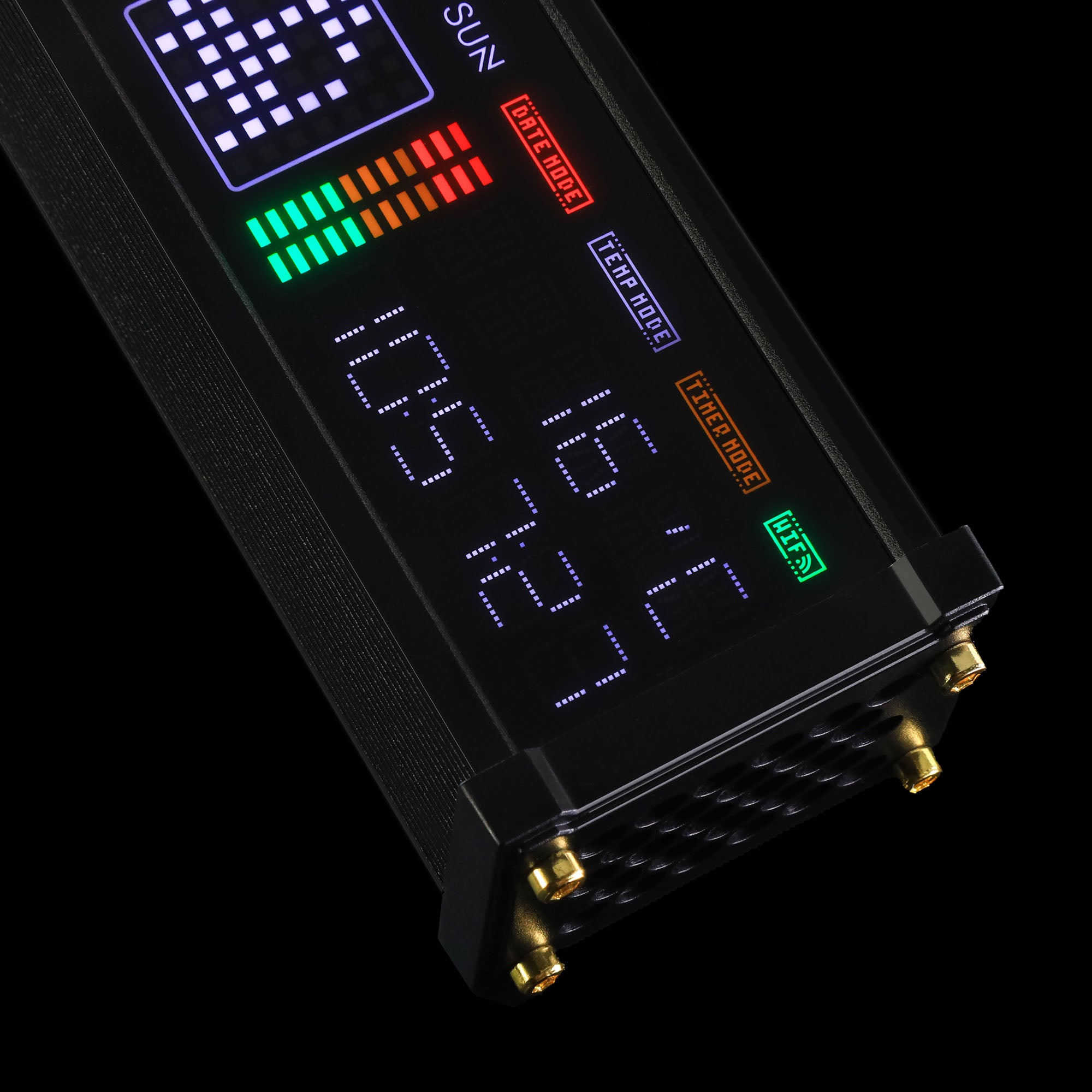
So we gave it music-reactive lighting, real-time PC monitoring, and customizable pixel art.
Ships from U.S. · 30-day returns
WFD II
If you have any questions, you are always welcome to contact us. We'll get back to you as soon as possible, within 24 hours on weekdays.
-
Shipping Information
We ship from our U.S. warehouse.
• Standard (2–7 business days)
Orders $0.00–$128.99 → $7.99
Orders $129.00 and up → Free
• Expedited (2–5 business days) → $11.99
• Express (1–3 business days) → $19.99 -
Customer Support
If you have any questions, please send an email to our support email address and we will respond within 48 hours.
Alternatively, you can contact us by opening the “Contact Us” page on the website.
-
Return & Refund
You can request our Return & Refund Service:
Unshipped Orders: Returns can be requested unconditionally. Please contact support@atomicvoyage.com to cancel your order.
Please log in to your Atomic Voyage account to cancel your order and the payment will be automatically refunded to your account.
Shipped Orders: Returns can be requested unconditionally within 30 days of the date of purchase.
The shipping fee can be removed due to product quality problems or wrong products sent, otherwise the customer has to pay the shipping fee.
Returned products should be confirmed that there is no human-caused damage affecting secondary sales, and the condition is new or nearly new, otherwise it will not be accepted.
Return & Refund Service will not be provided where:
It is requested beyond 30 days of the date of purchase.
A product sent to Atomic Voyage for Return & Refund Service does not include all original accessories, attachments, packaging or gift(s) included in original order, or any item is not in new or like-new condition, i.e. with cracks, dents or scratches.
Damage is caused to the product by improper installation, operation or unauthorized use or modification of the product.
AtomicVoyage WFD II
It started with time.
At first, we just wanted to design a clock.
But soon we realized — we wanted more than time.
We wanted something that could move with the music,
that could talk to our computers,
that could feel alive on our desks.
A clock that reacts, connects, and inspires.
That’s how WFD II was born —
a desktop companion that breathes with your work.
Designed to do more than tell time
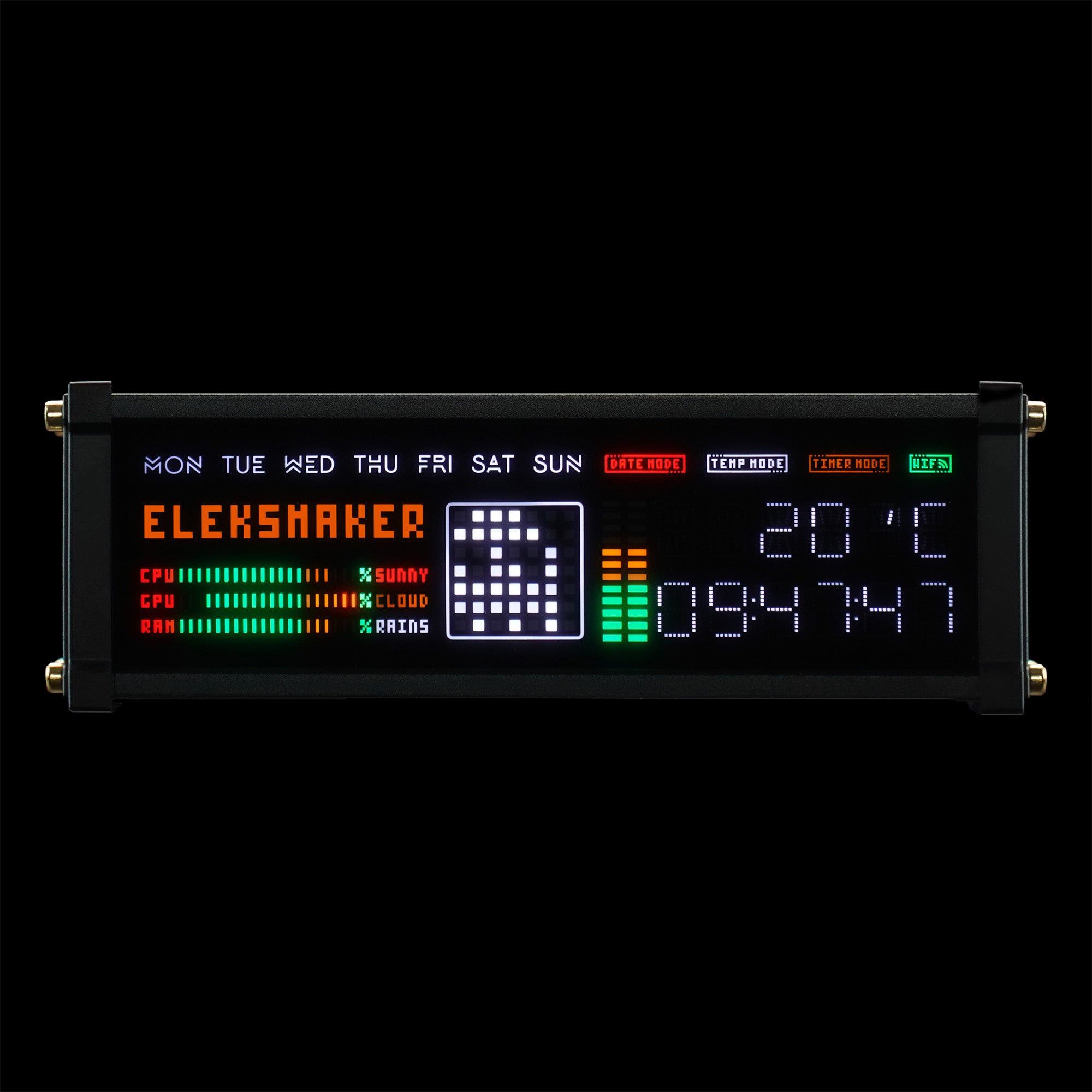
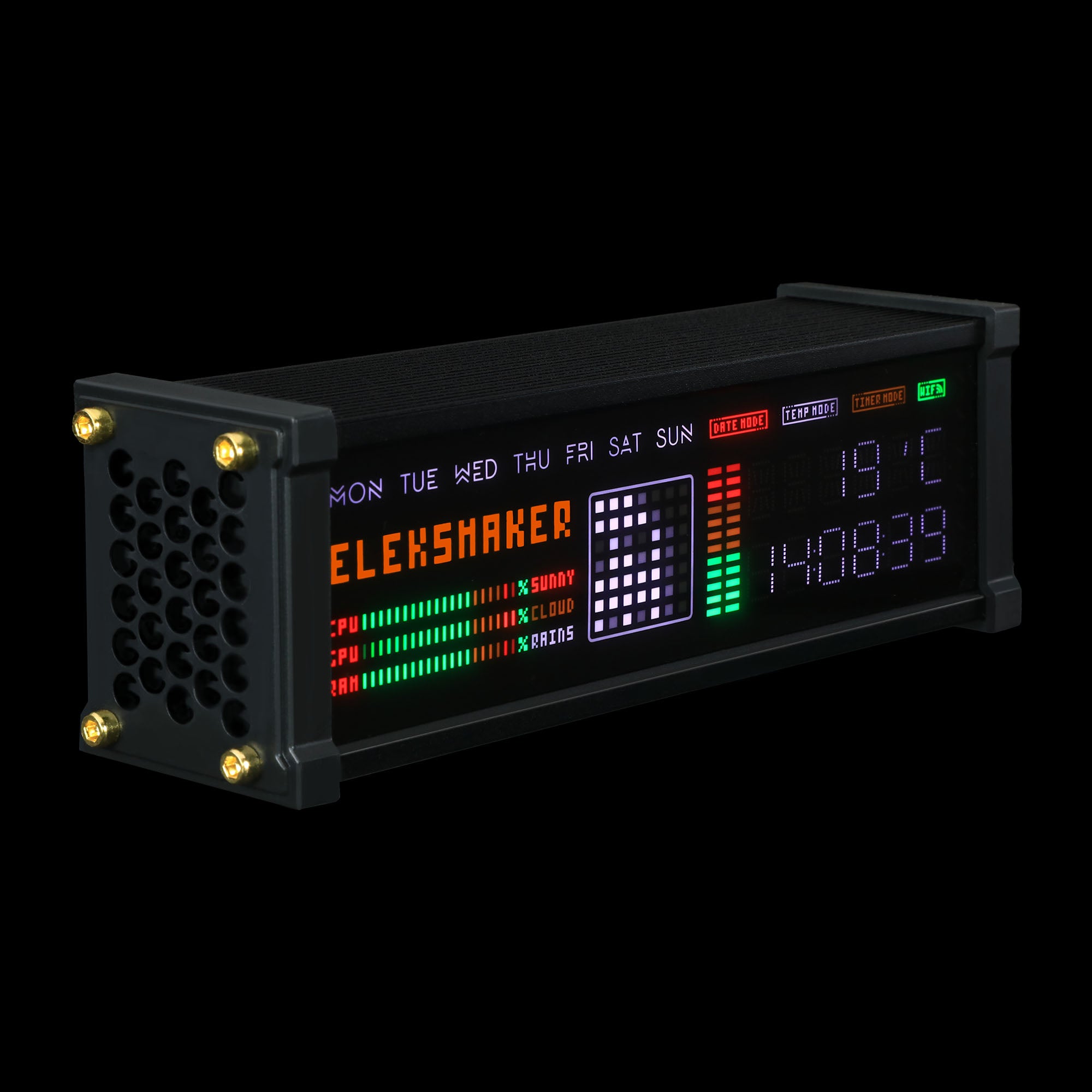
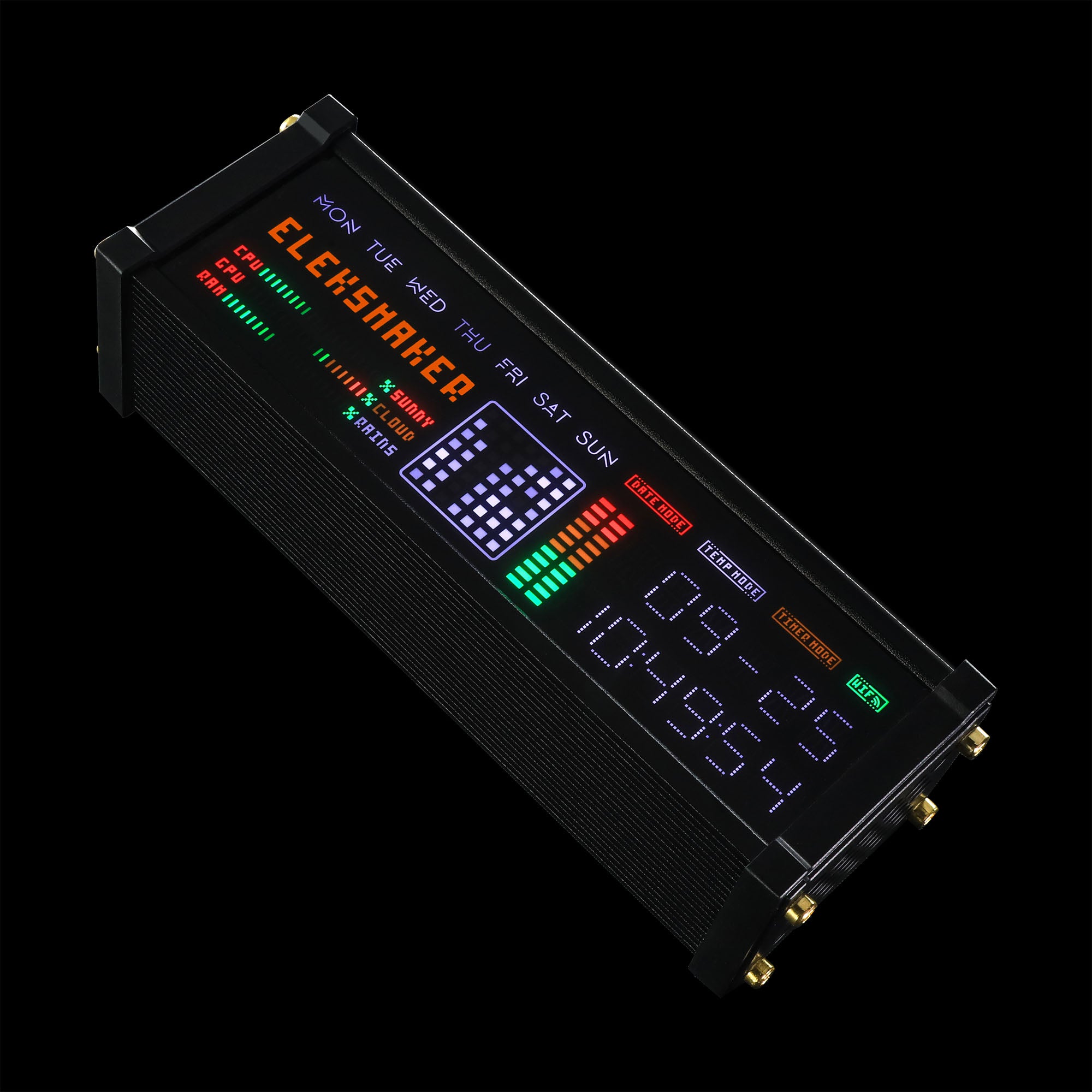
WFD II turns time into motion — combining a digital clock, music visualizer, and real-time PC monitor in one.
It doesn’t just sit on your desk — it interacts with it.
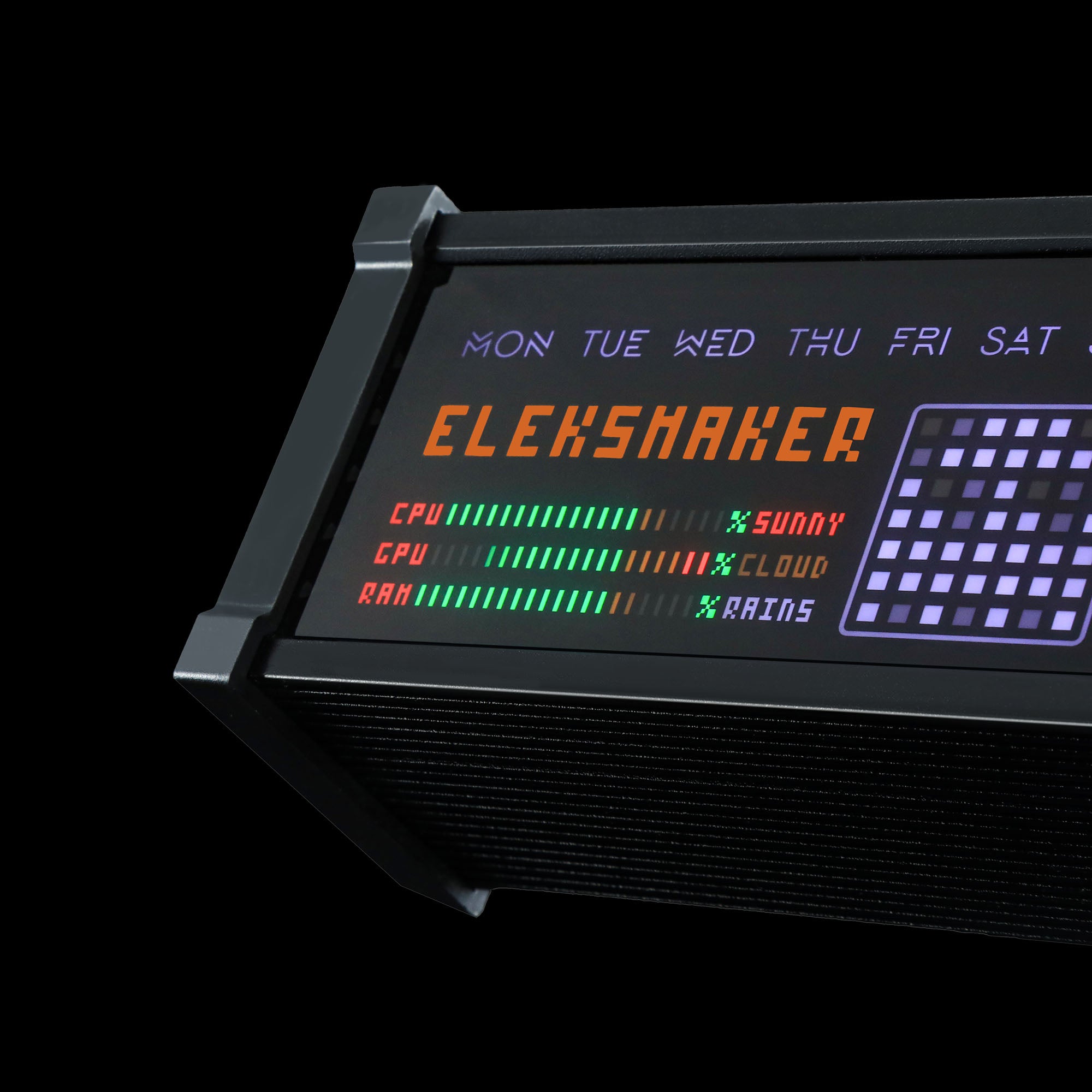
Real-time CPU / GPU / RAM display
Connect WFD II to your PC and see your system breathe in real time.
CPU load, GPU usage, and memory stats appear as clean visual bars — no clutter, no distractions.
(Windows 10 and above supported.)
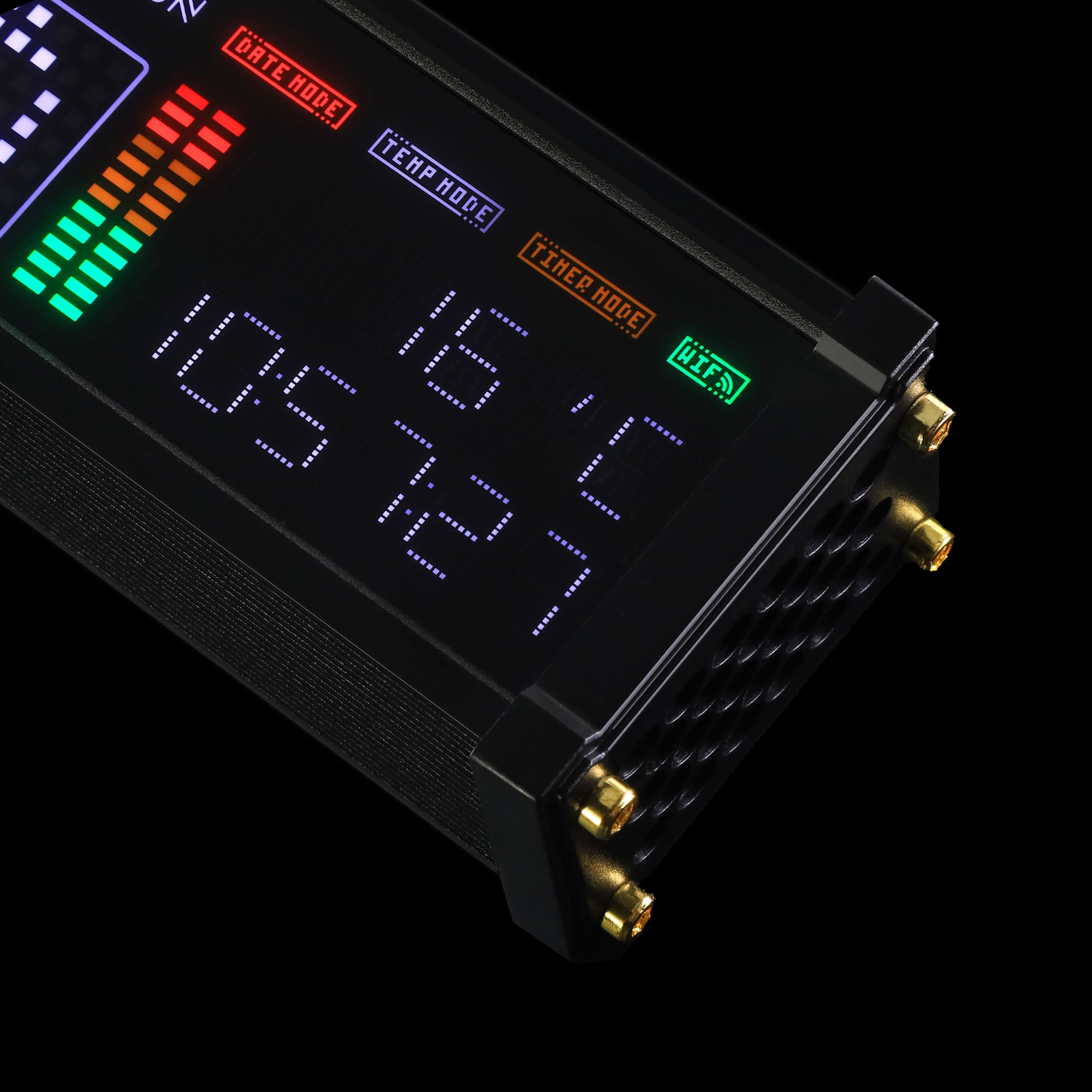
Local time, date, and real-time weather display
WFD II automatically syncs with your Wi-Fi network to show accurate local time and weather conditions.
See the hour, date, temperature, and forecast at a glance.
Whether on your desk or bedside, it keeps you connected to the world outside.
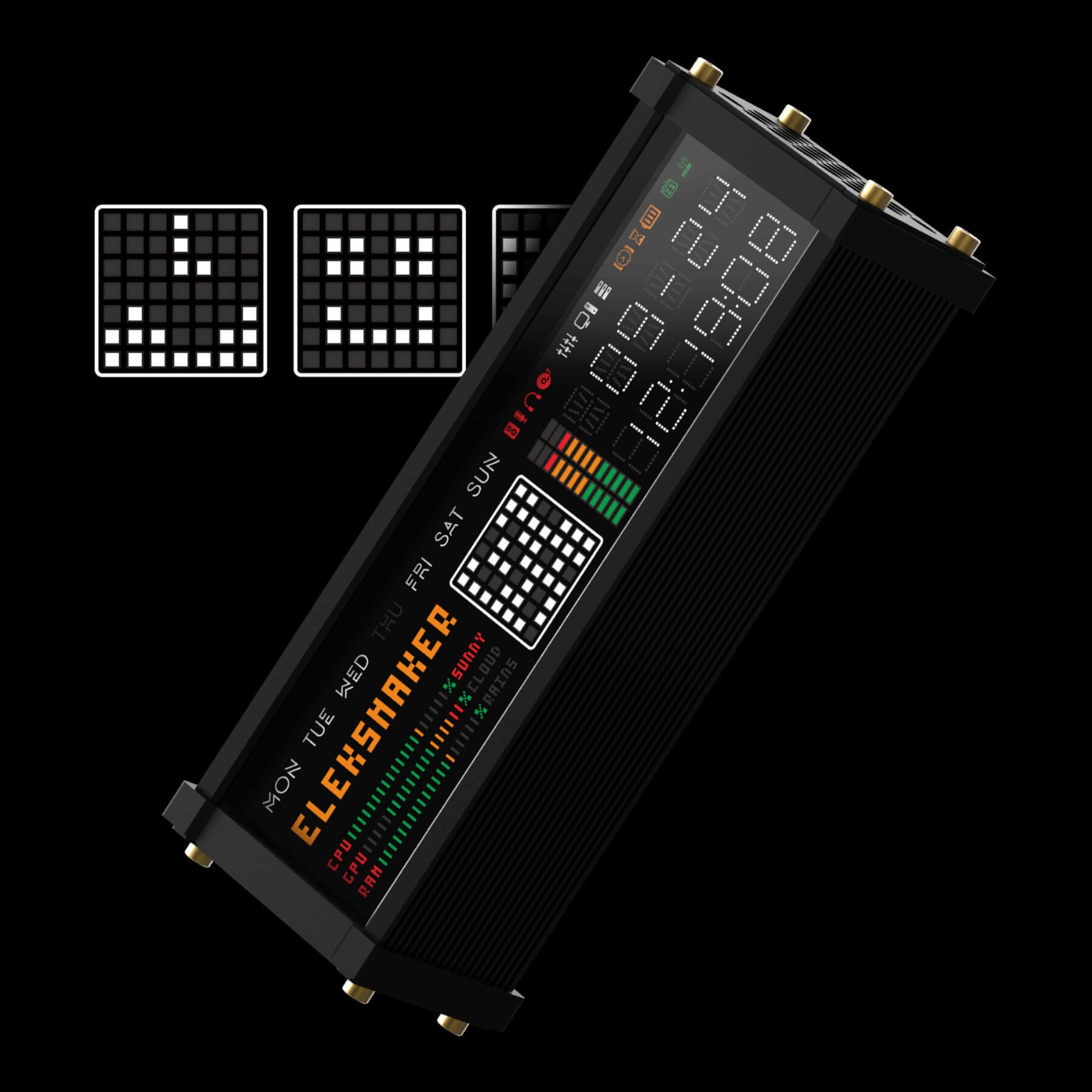
Every pixel tells your story.
Create and upload your own pixel art, scrolling messages, and mini animations directly from your phone or computer.
Design what feels like you, then sync it instantly to your WFD II display.
Your setup becomes personal, alive, and truly one of a kind.
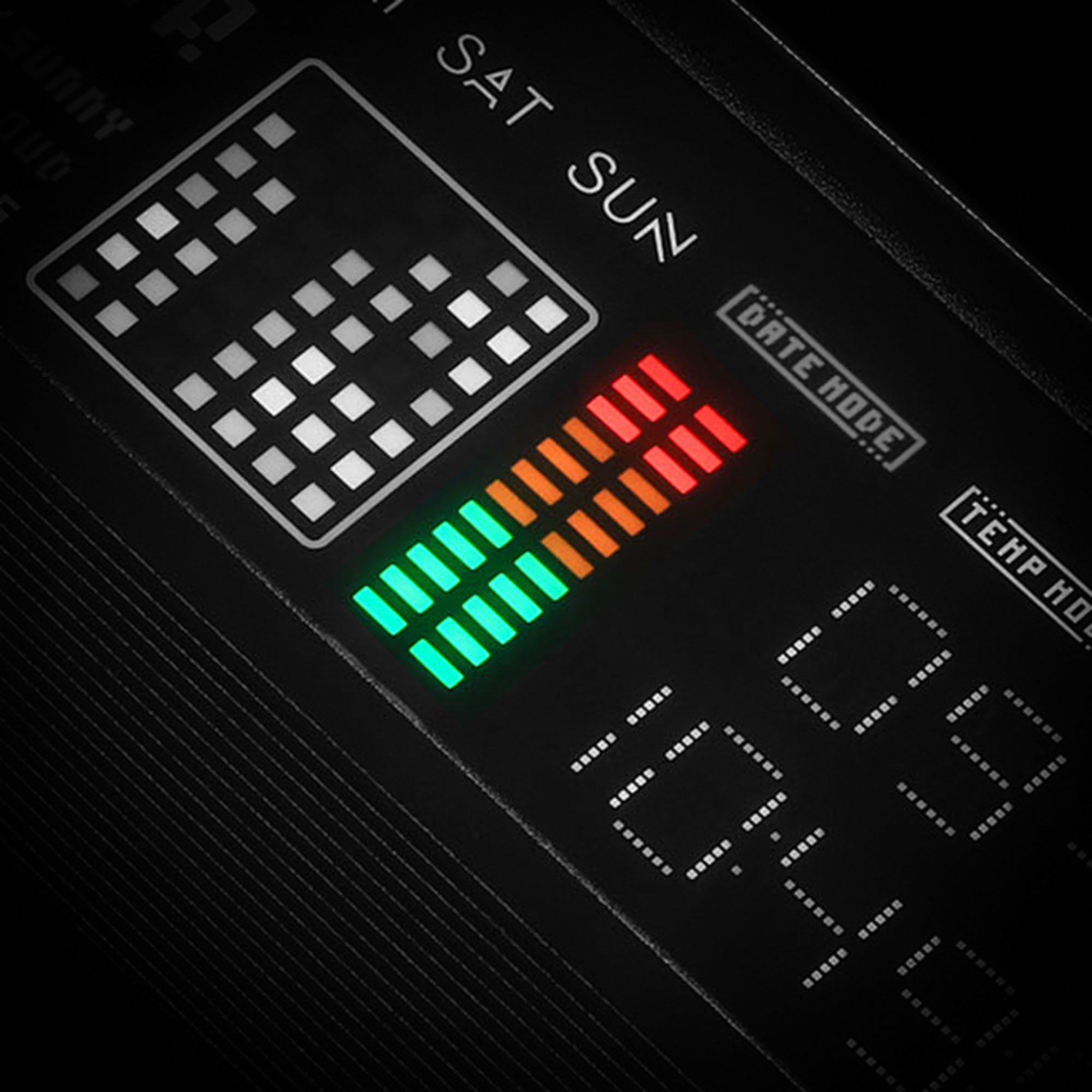
Real-time Spectrum Lighting
WFD II listens and reacts — transforming sound into motion with real-time spectrum lighting.
From soft jazz to heavy synths, it mirrors every rhythm in color, motion, and mood.

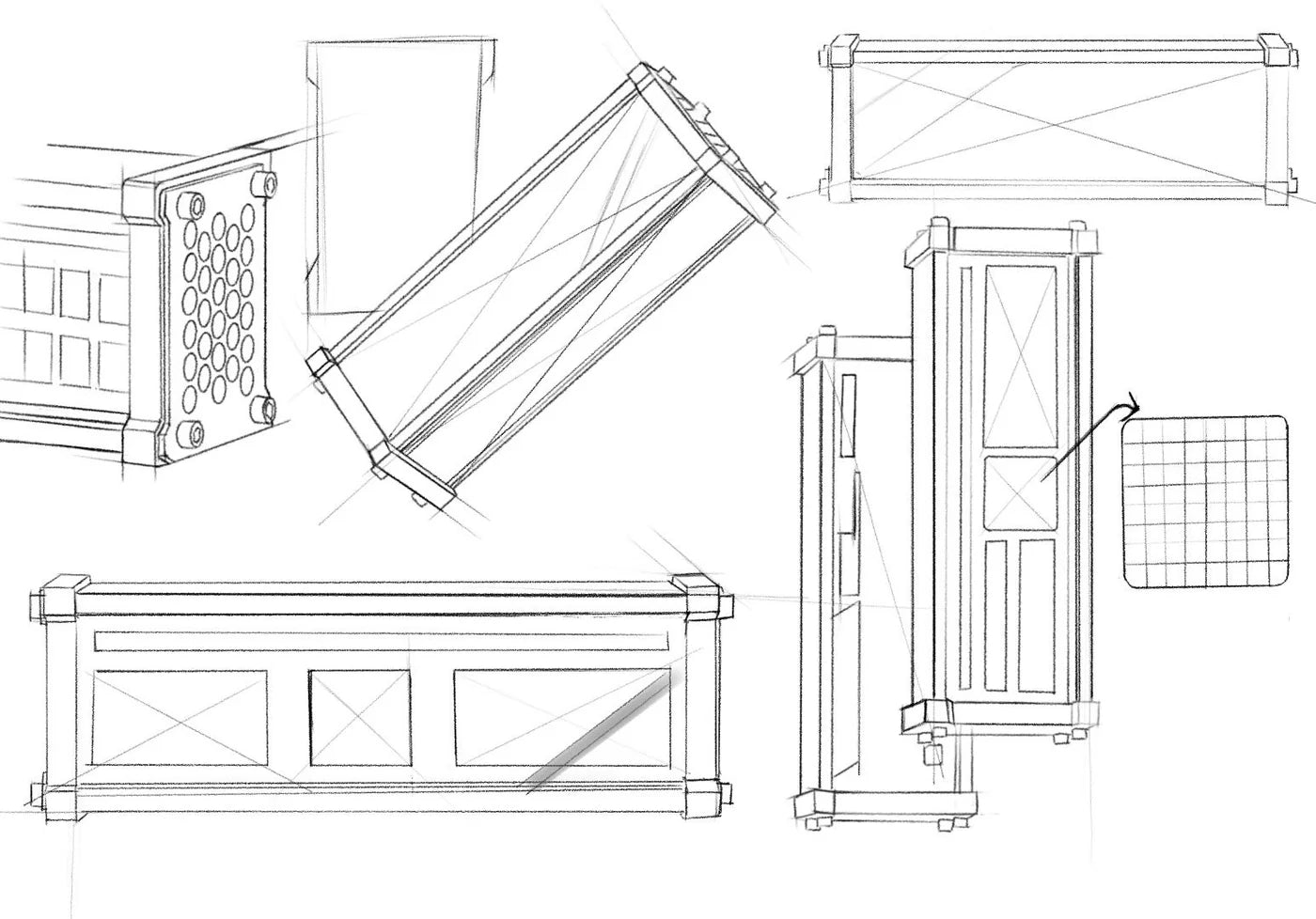
Designed from zero.
Every detail of WFD II was created in-house by Atomic Voyage — no templates, no shortcuts.
From its aluminum body to its pixel interface, we built it to feel alive, authentic, and unmistakably ours.
Questions, answered.
How do I connect my WFD II to Wi-Fi?
Power on the clock and connect your phone to the clock’s Wi-Fi hotspot.
Select your home 2.4 GHz Wi-Fi network, enter the password, and wait for the connection to complete.
Once connected, press the Info button to view the clock’s local IP address.
Why can’t my WFD II find my Wi-Fi network?
WFD II supports 2.4 GHz Wi-Fi only.
If your router is using only a 5 GHz network, please enable a 2.4 GHz network or temporarily separate the two bands during setup.
How do I access the settings page?
After connecting the clock to your home Wi-Fi, press the Info button to view its IP address (for example, 192.168.1.100).
Open that address in any web browser on a device connected to the same Wi-Fi network.
Does WFD II support countdowns?
Yes.
WFD II includes a built-in countdown mode that can be configured through the web interface.
Can I display CPU, GPU, and RAM usage?
Yes, on Windows.
The clock supports real-time PC hardware monitoring through EleksWFD Tool.
macOS does not support this feature because system hardware data cannot be accessed in the same way.
Why isn’t hardware monitoring working?
Please make sure:
- Your PC and the WFD II are connected to the same local network.
- Only EleksWFD Tool is running.
- Hardware monitoring is enabled inside the software.
If the CPU appears but the GPU does not, the GPU sensor may not be available on your system.
Do I need to install software?
For normal use, no.
The clock is configured entirely through its built-in web interface.
The EleksWFD Tool is only required if you want to display live PC hardware information.
What power adapter should I use?
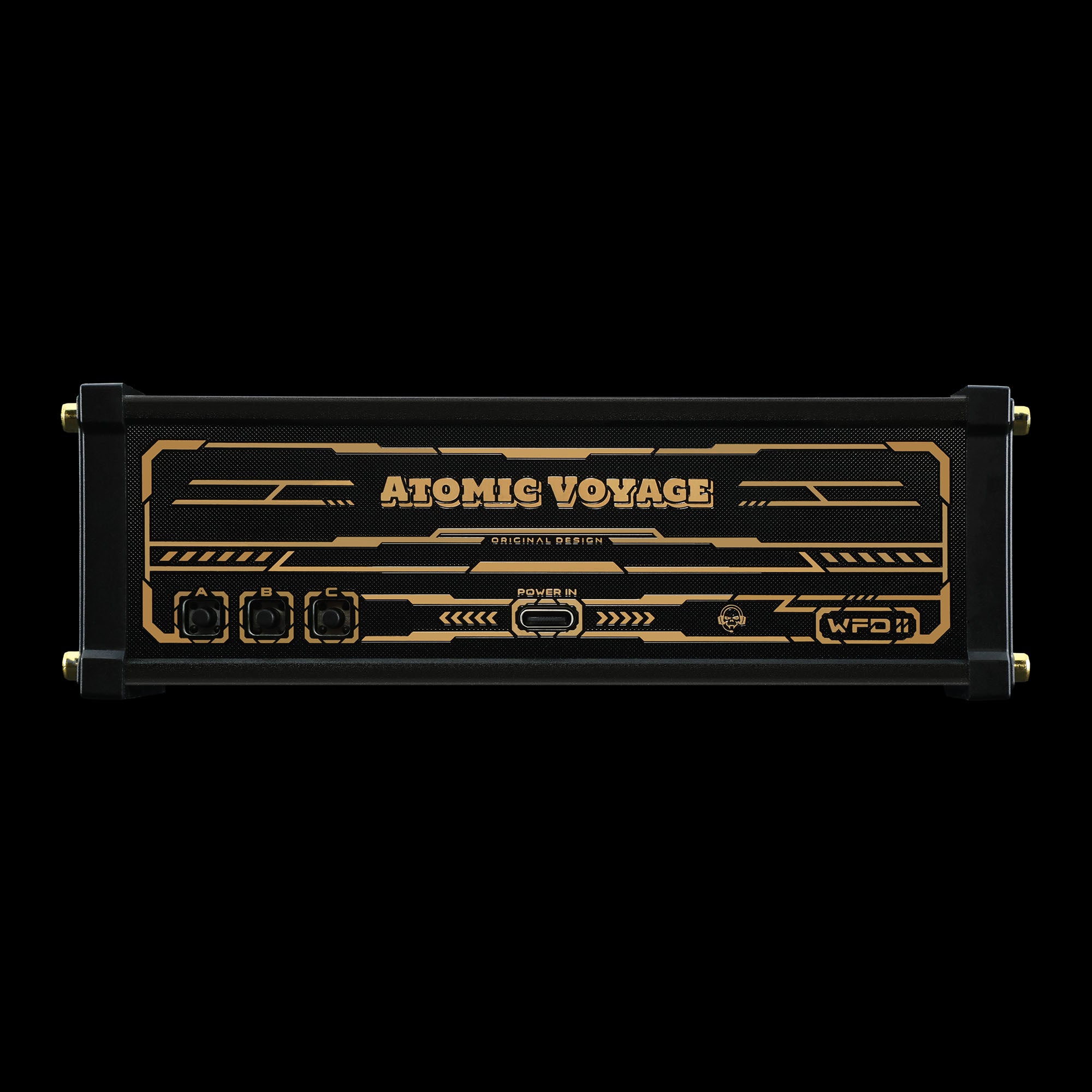
For the best performance, use a stable 5V/2A USB power adapter.
Using an underpowered USB port may cause instability or unexpected restarts.
Tech Specs
Included in the Box

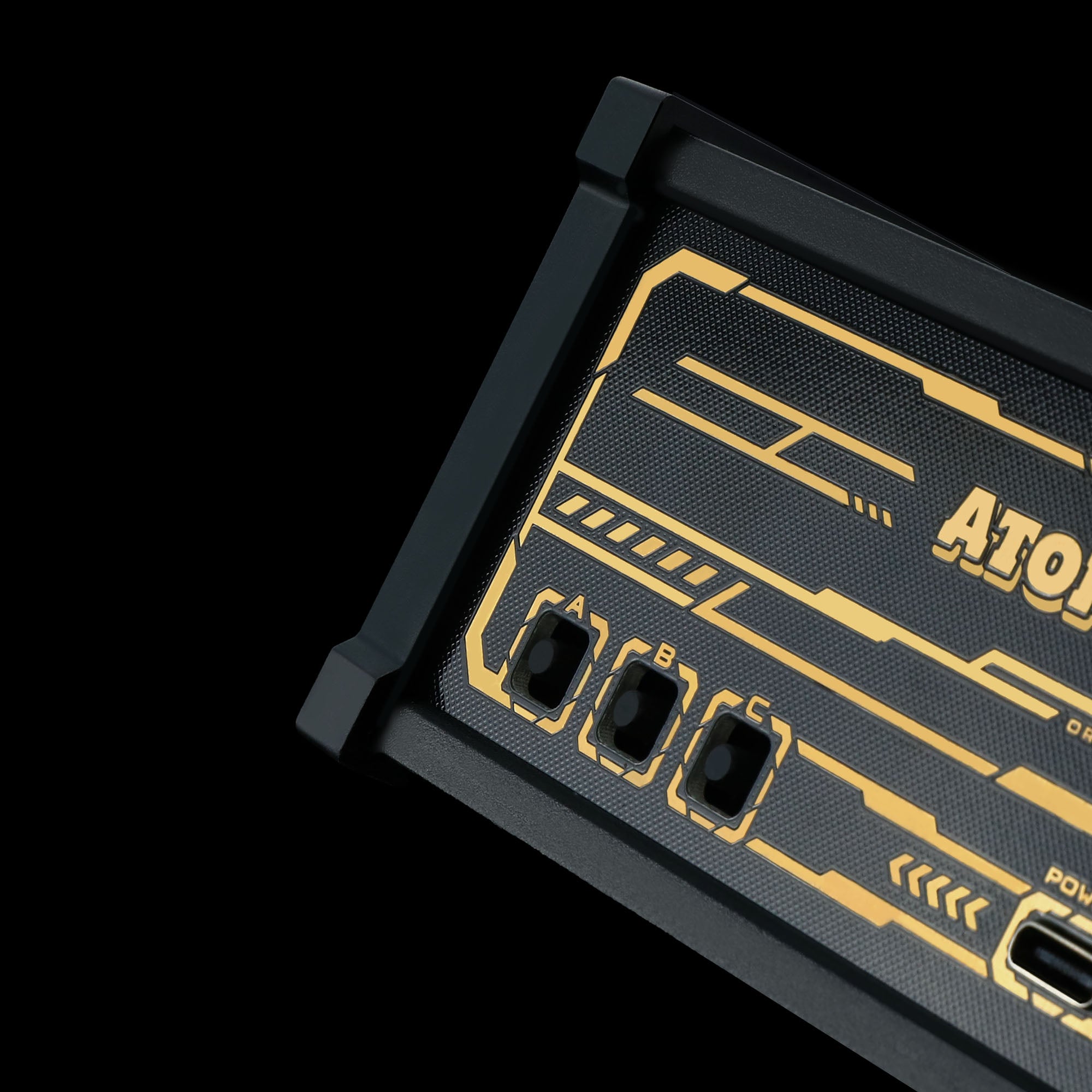
Type-C cable

User Manual
WFD2


Setup Guide
Atomic Voyage Clock Web Control Center Guide
How to Easily Set Up and Use Your Atomic Voyage WFD II
Read moreabout How to Easily Set Up and Use Your Atomic Voyage WFD II
Setup IPS Clock in a few easy steps