
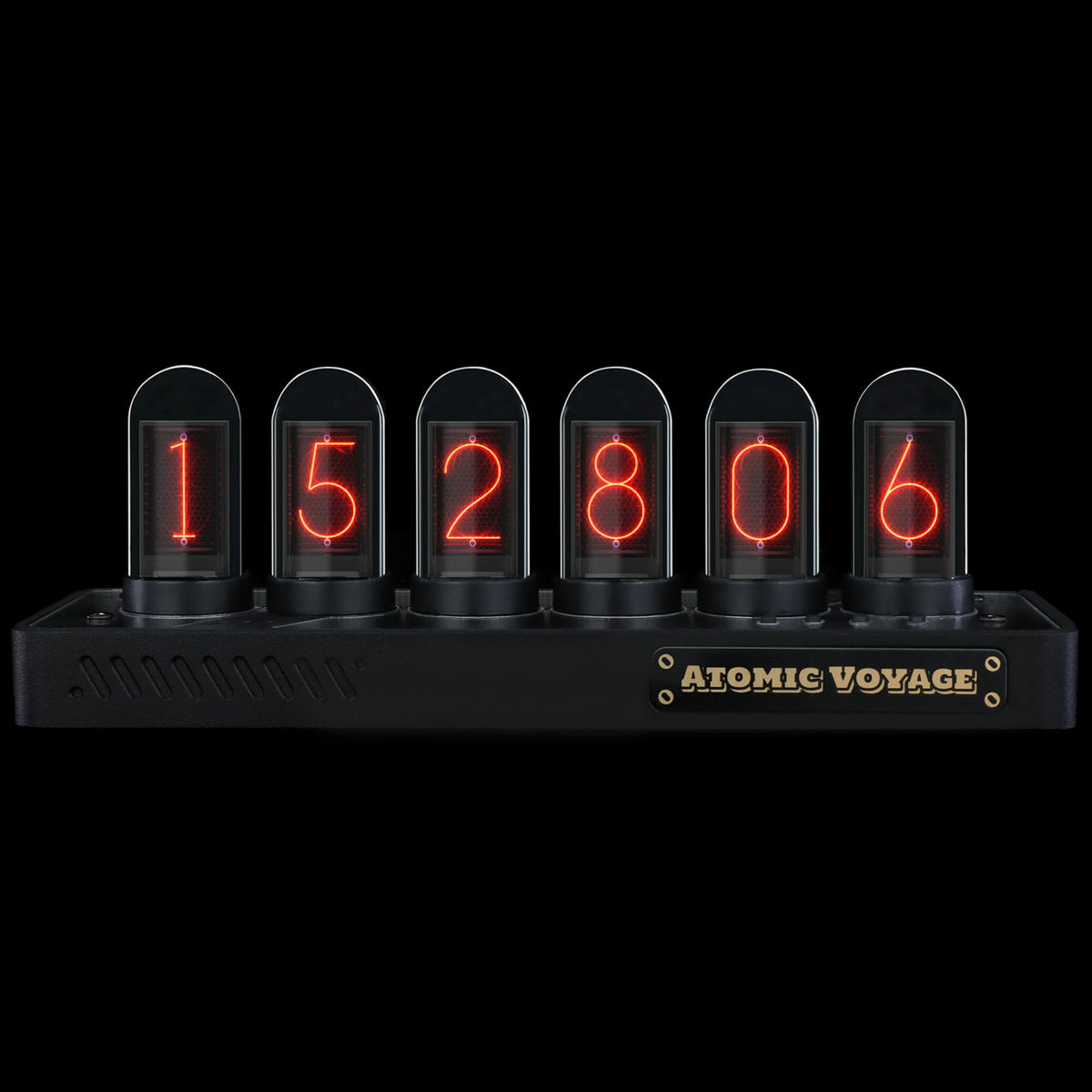
PRO
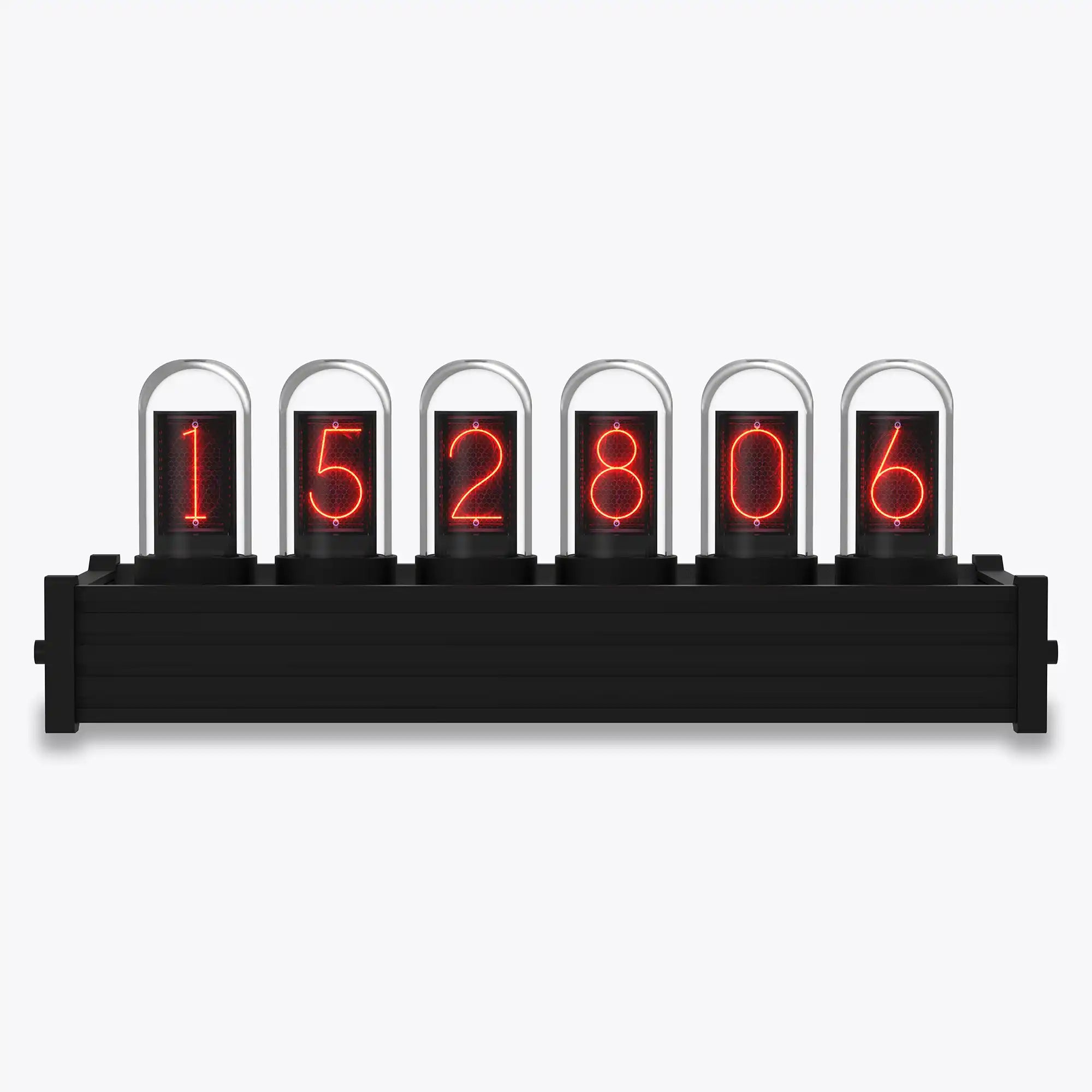
Nixie-inspired character, precision-machined from aluminum.
Ships from U.S. | 30-day returns
Add the Dust-Proof Dome
PRO
If you have any questions, you are always welcome to contact us. We'll get back to you as soon as possible, within 24 hours on weekdays.
-
Shipping Information
We ship from our U.S. warehouse.
• Standard (2–7 business days)
Orders $0.00–$128.99 → $7.99
Orders $129.00 and up → Free
• Expedited (2–5 business days) → $11.99
• Express (1–3 business days) → $19.99 -
Customer Support
If you have any questions, please send an email to our support email address and we will respond within 48 hours.
Alternatively, you can contact us by opening the “Contact Us” page on the website.
-
Return & Refund
You can request our Return & Refund Service:
Unshipped Orders: Returns can be requested unconditionally. Please contact support@atomicvoyage.com to cancel your order.
Please log in to your Atomic Voyage account to cancel your order and the payment will be automatically refunded to your account.
Shipped Orders: Returns can be requested unconditionally within 30 days of the date of purchase.
The shipping fee can be removed due to product quality problems or wrong products sent, otherwise the customer has to pay the shipping fee.
Returned products should be confirmed that there is no human-caused damage affecting secondary sales, and the condition is new or nearly new, otherwise it will not be accepted.
Return & Refund Service will not be provided where:
It is requested beyond 30 days of the date of purchase.
A product sent to Atomic Voyage for Return & Refund Service does not include all original accessories, attachments, packaging or gift(s) included in original order, or any item is not in new or like-new condition, i.e. with cracks, dents or scratches.
Damage is caused to the product by improper installation, operation or unauthorized use or modification of the product.
Design
A clock worth looking at.

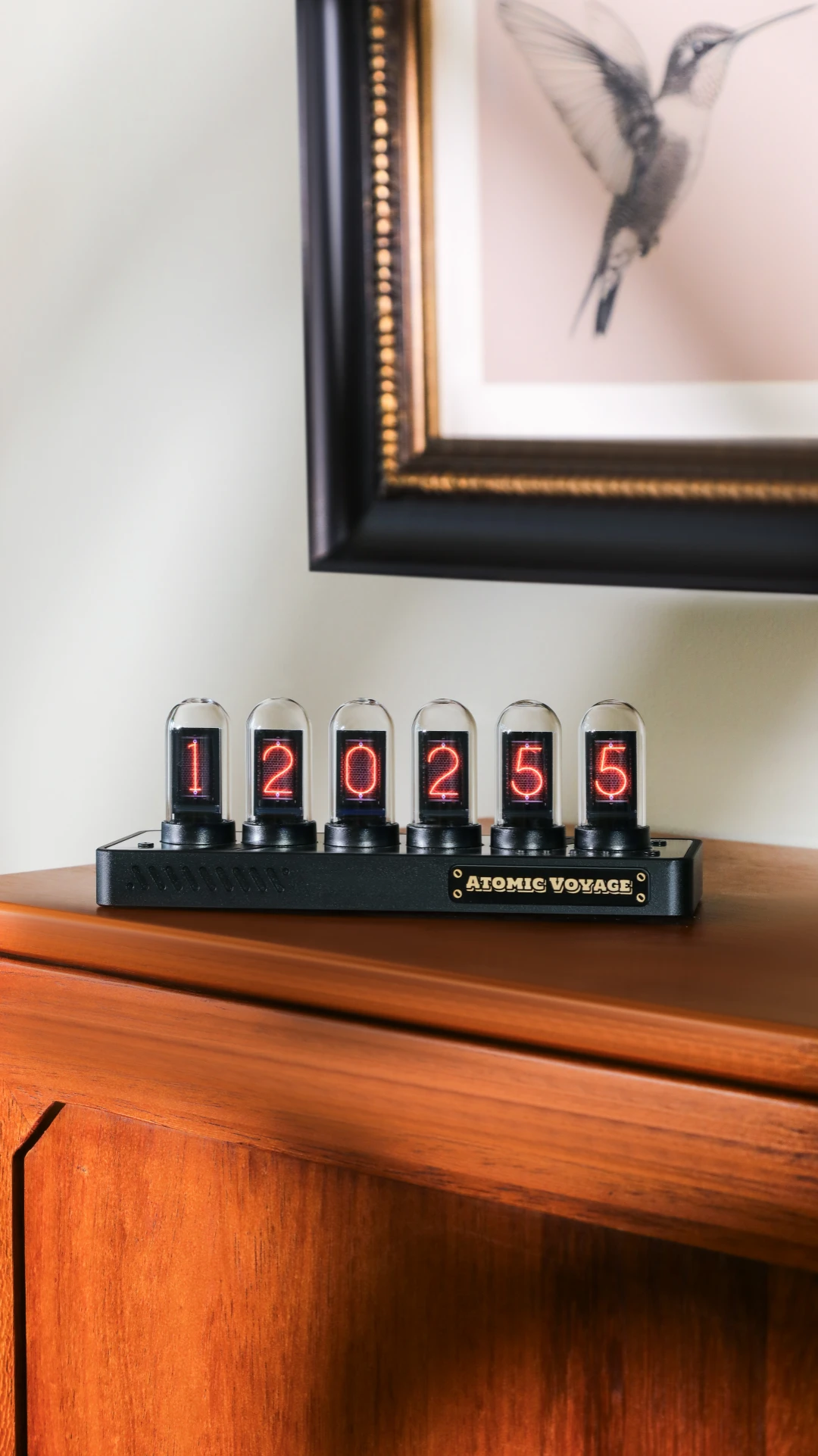
CNC-machined from a single block of aluminum, PRO’s base delivers precise edges, seamless transitions, and a substantial feel. Crystal-clear glass and an open structure bring its engineering into view.
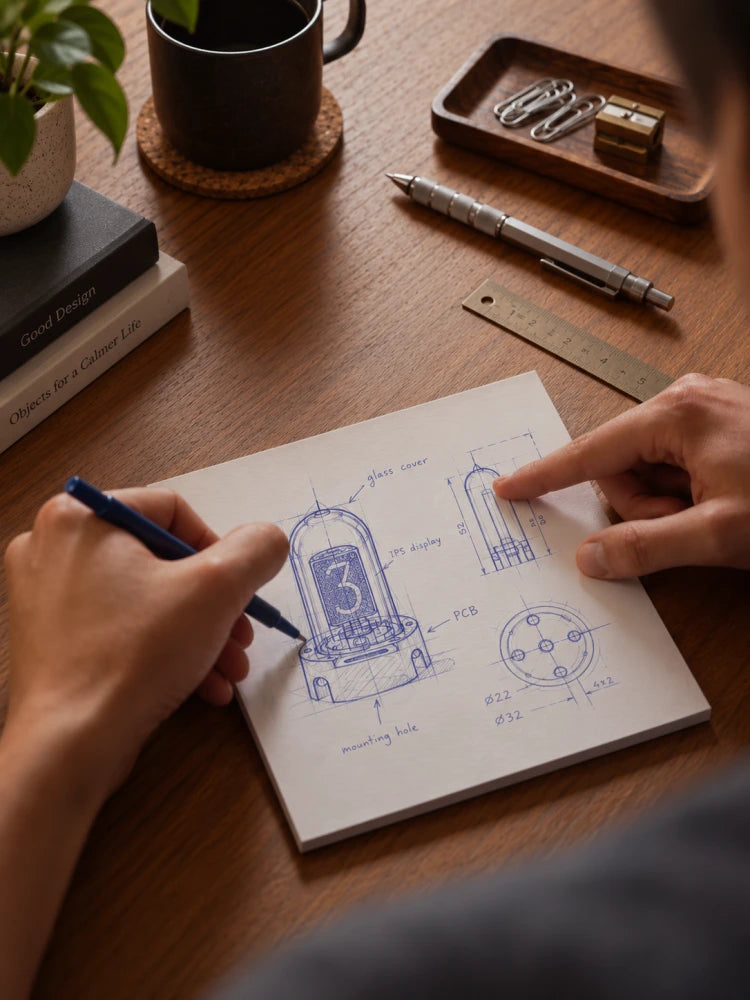
Designed from the digit up.
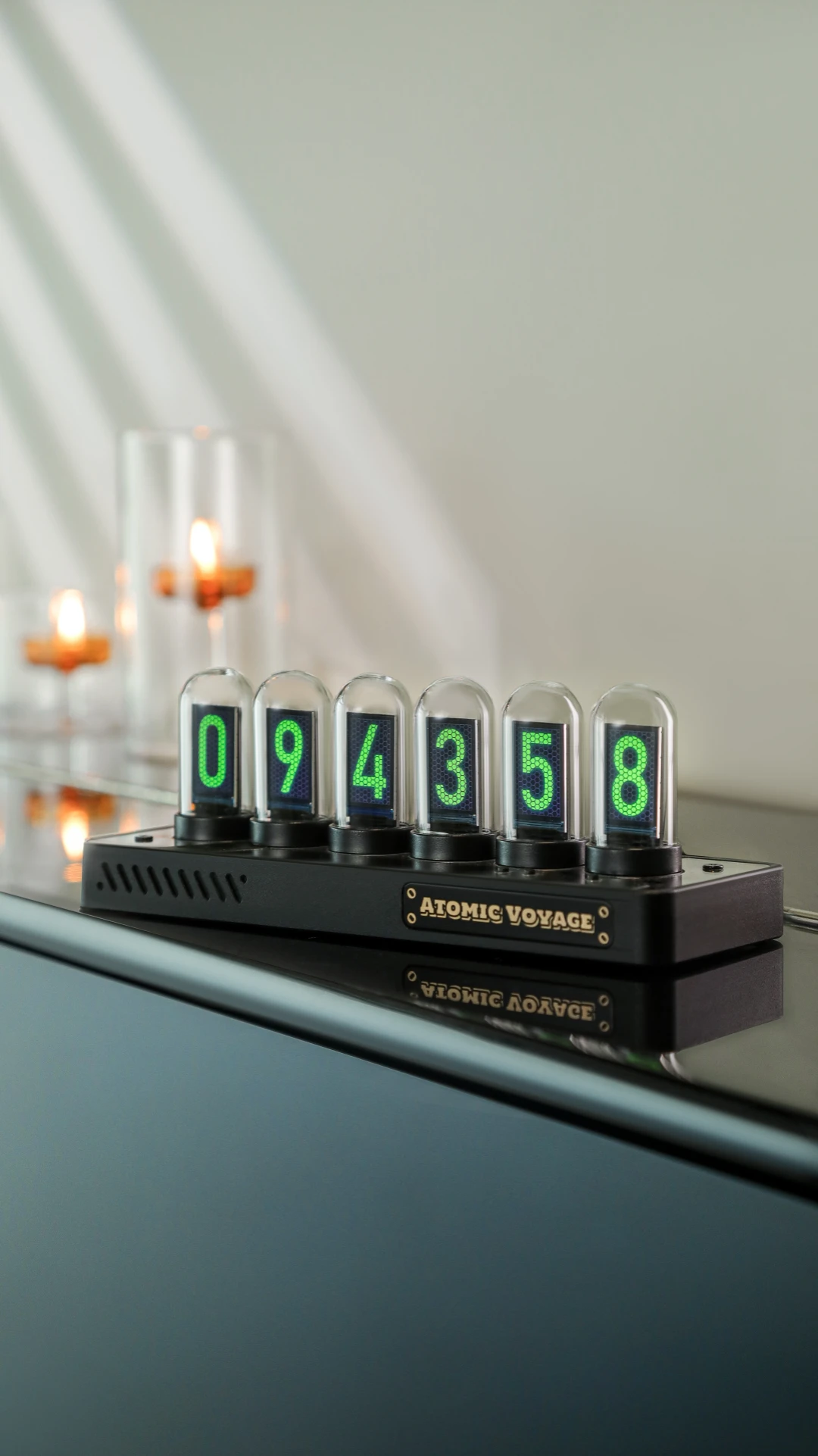
Every detail began with the digit. The curve of the glass tube and the spacing around its IPS display were considered together, giving every numeral clarity, depth, and a presence of its own.
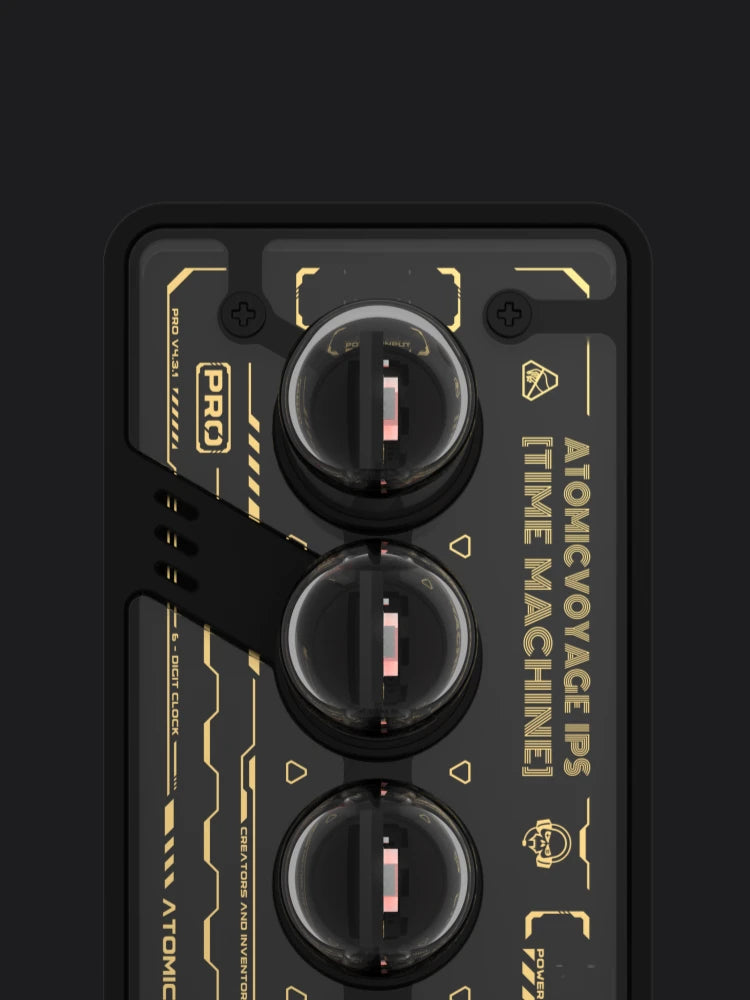
Engineering, on display.
A transparent upper panel reveals the carefully arranged PCB beneath, making the clock’s inner workings part of its design.
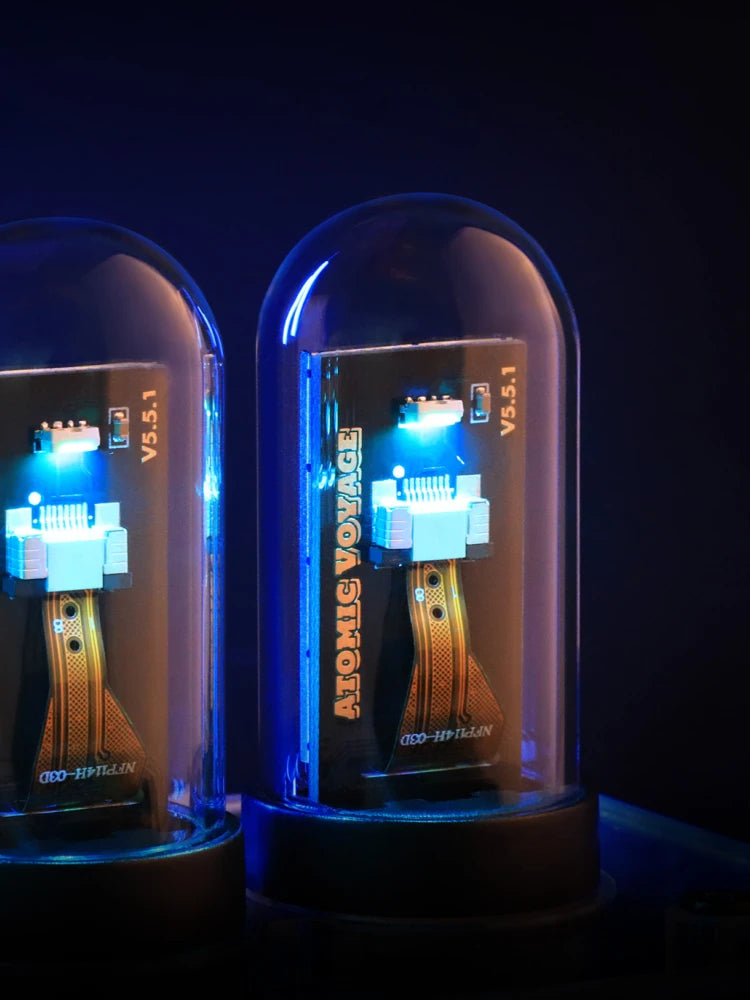
Light behind every screen.
A dedicated RGB light sits behind each display, illuminating the surrounding structure and carrying the glow beyond the digits.

Over 100 faces.
All yours.
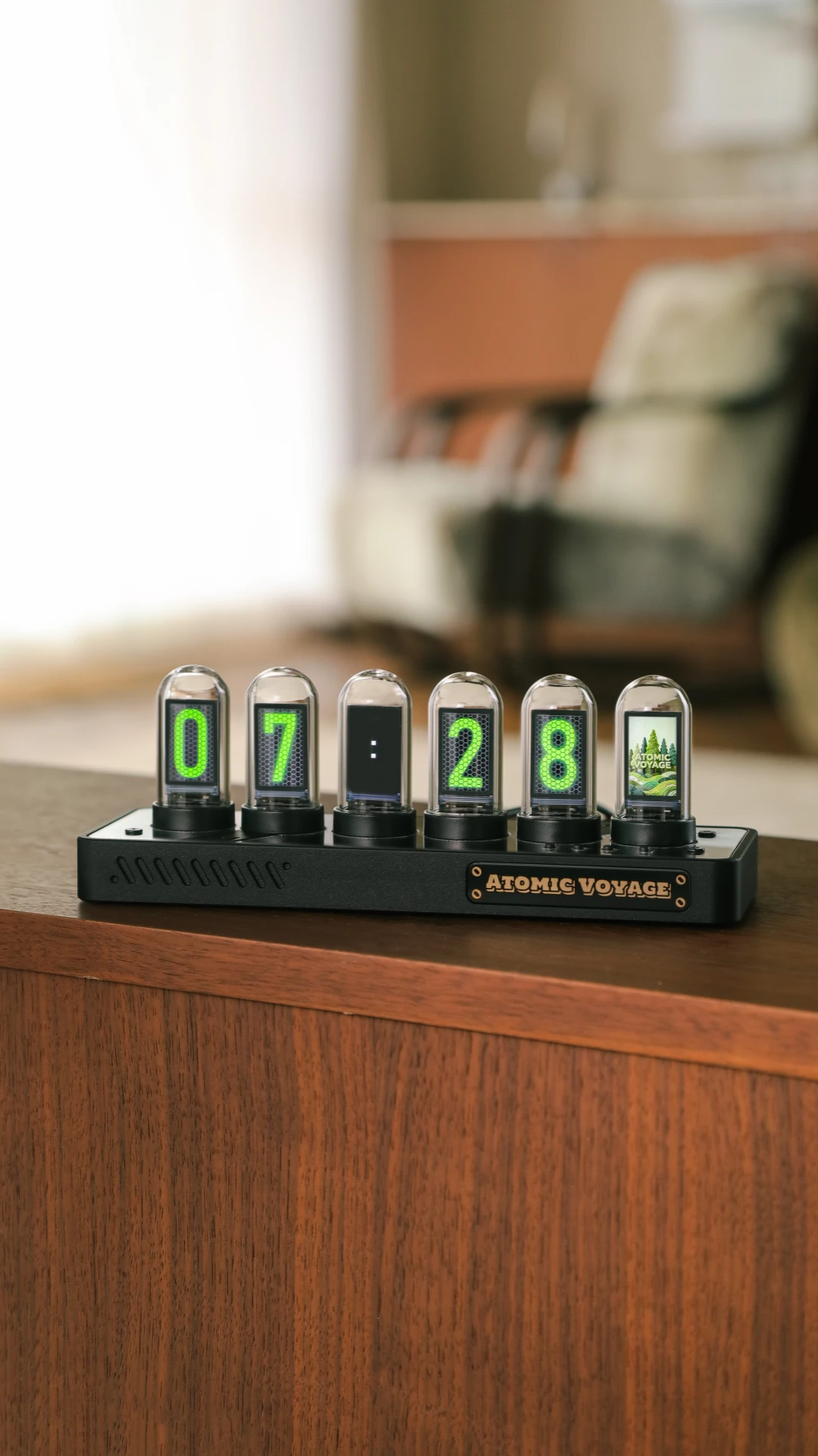
Choose from Nixie-inspired classics, retro graphics, and clean modern designs. Switch the look whenever the mood strikes.


More than just the time.





Use your phone, tablet, or computer to change clock faces, upload photos, set up weather, and fine-tune the display. No app required.
In Your Space
At home,
by design.
On a desk, shelf, or nightstand, PRO brings a sculptural presence by day and an unmistakable glow after dark.
- This is easily one of the coolest and most unique clocks ever made.
- This is a gorgeous, magnificent addition to my home office. Could not be more pleased.
- Easy to set up and looks great and feels high quality
I absolutely love this item. I bought one for my wife and she’s very happy not as much as me but who cares 😆. I recommend it to anyone who likes the gadgets!
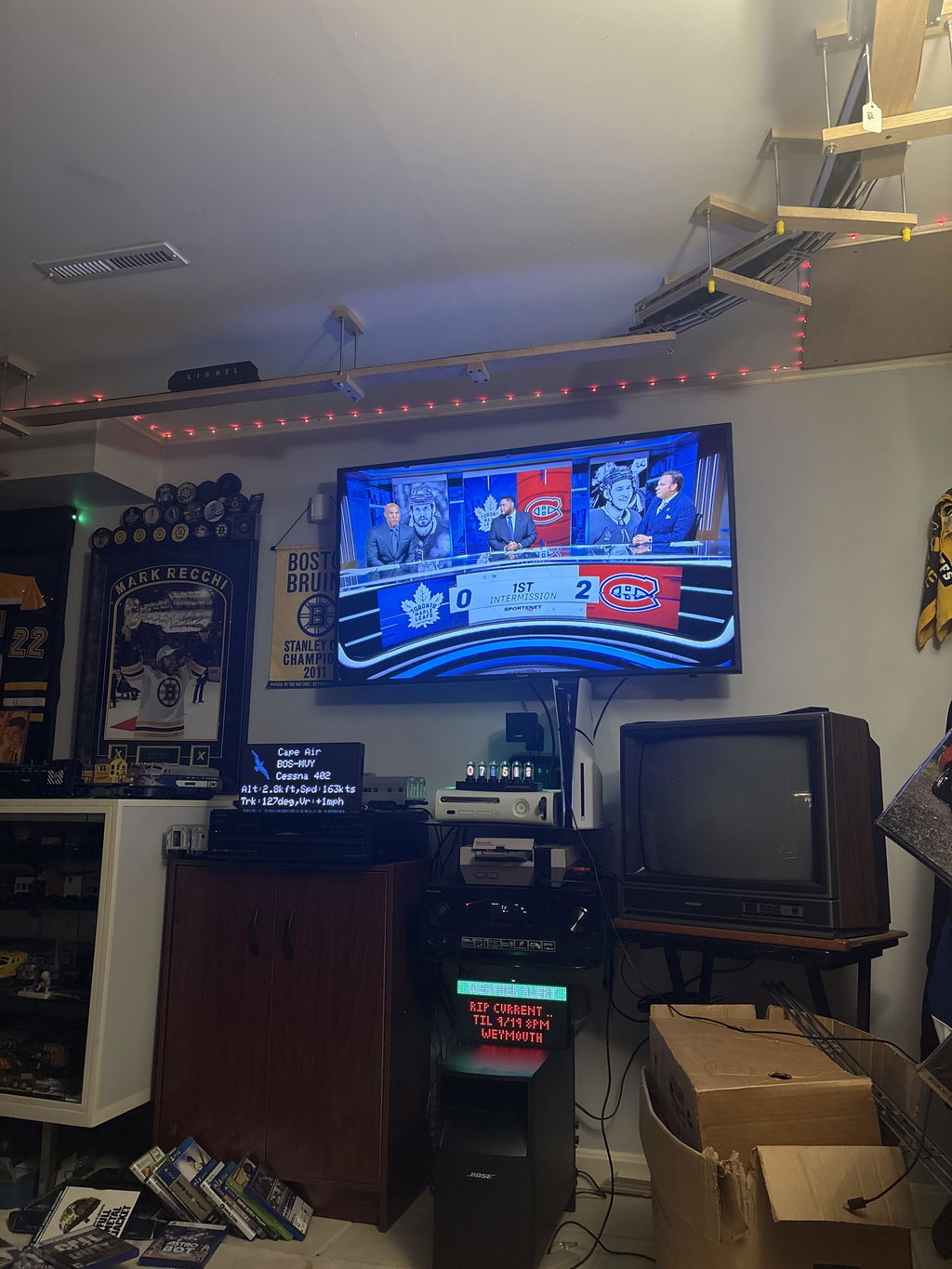
Love the clock! Extremely well designed out of quality materials.
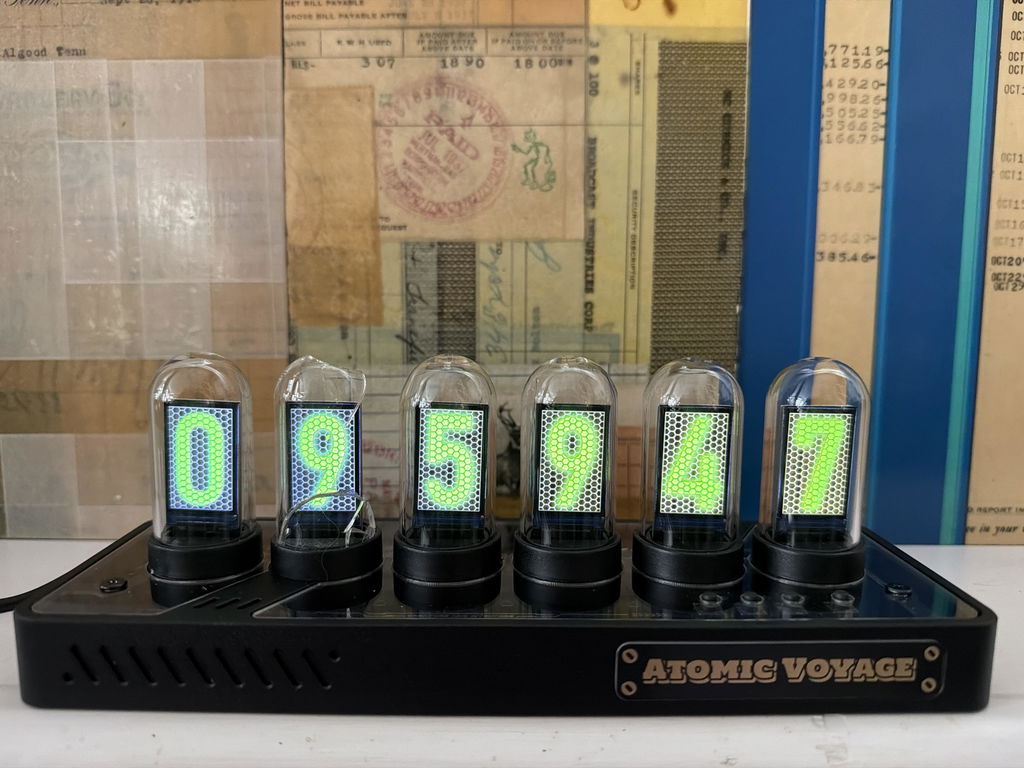
I really like the ability to put your inserts for each number. I put pictures of my family along with the numbers 0 thru9.
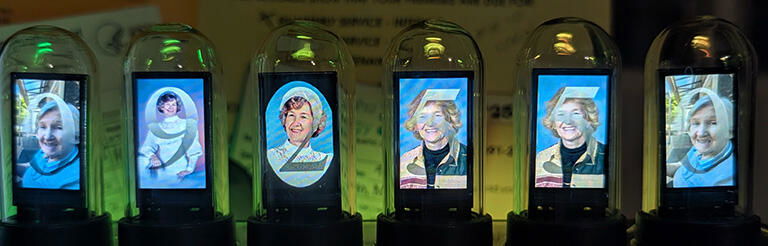
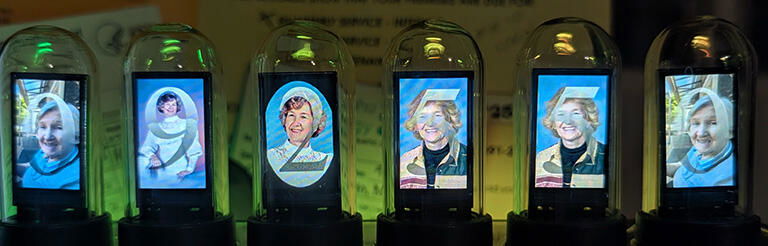
Really nice clock, works great etc.
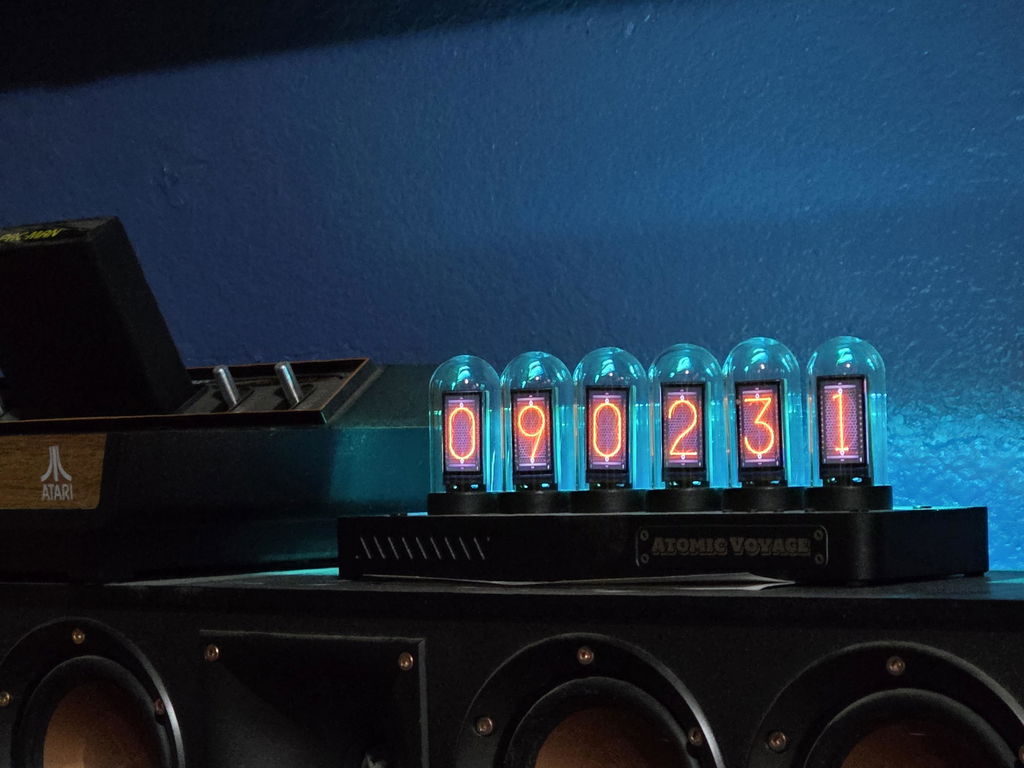
Really is amazing to use an entire hi-res IPS LCD panel to mimic a simple Nixie tube, but that's what they've done, and the effect is perfect. Plus you can switch to other fonts that duplicate electroluminescent displays, and many other options. It's a little tricky to get a PC to set up the on board WiFi, but once you sort it out the first time the clock keeps its own time perfectly. Great nostalgia trip.
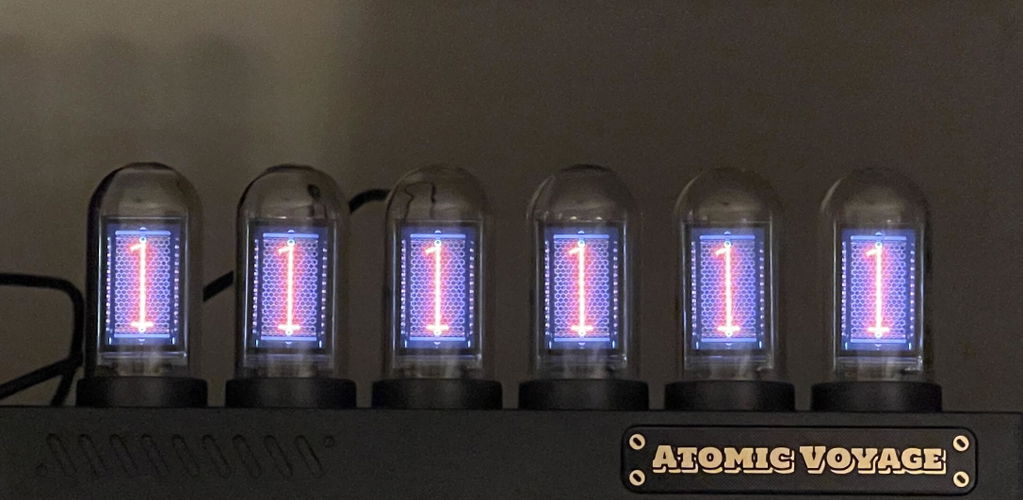
really happy with these products, they’re exactly like advertised and did not disappoint. My only nit is I wish I could control the backlighting of the clock without downloading software and plugging it into my computer, you can control everything else. Why not the backlight? Otherwise a great product and conversation piece.
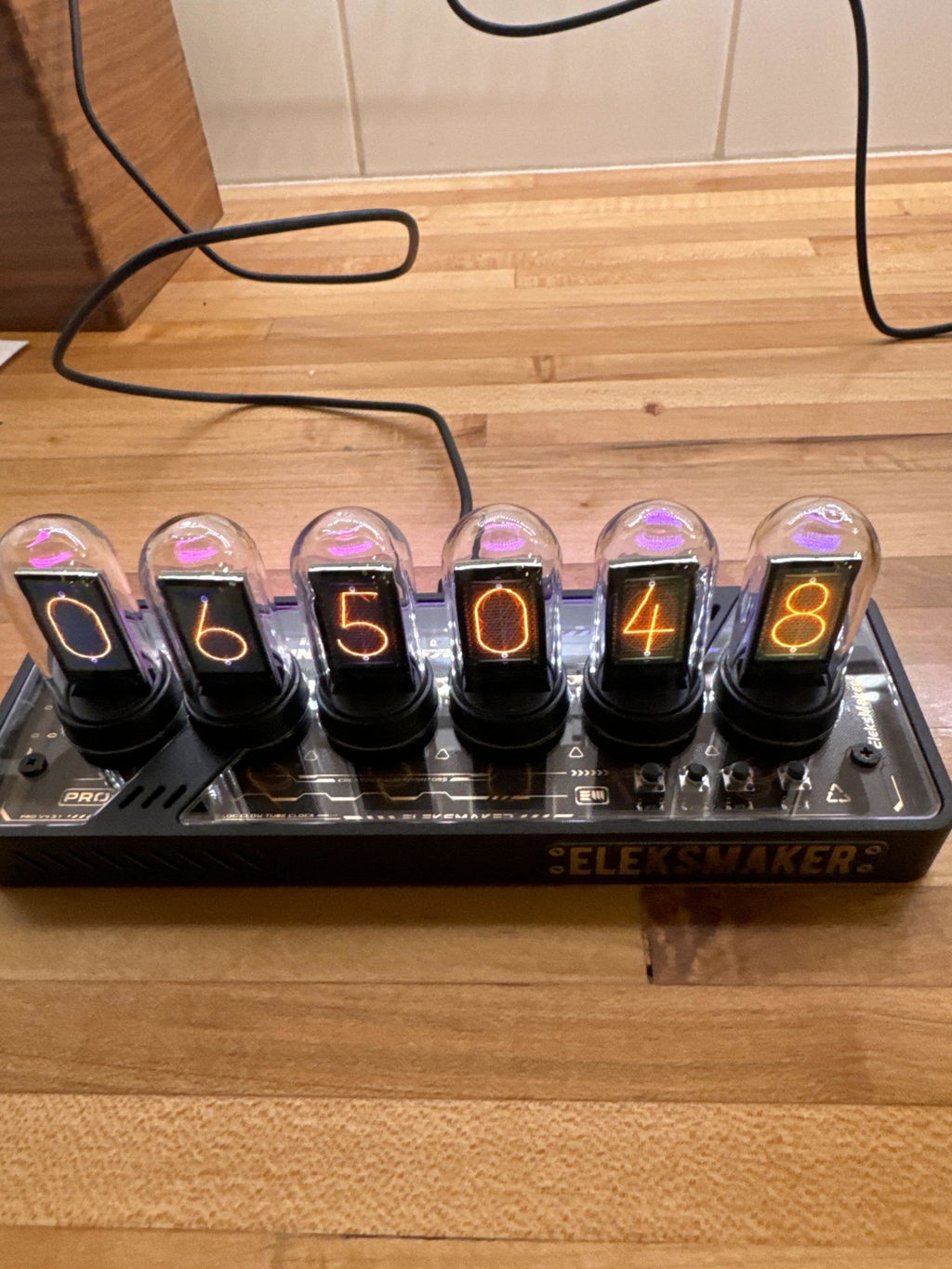
Awesome clock, should be cheaper but it’s a nice office addition
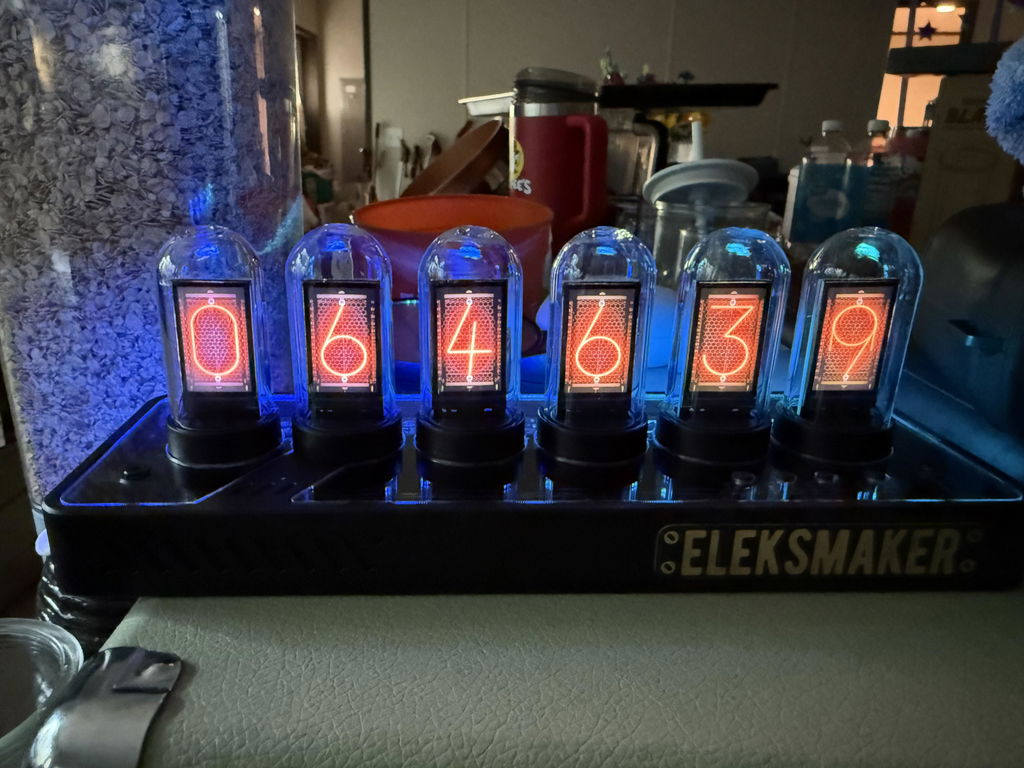
Awesome. Looks great ????.

Very cool

I just received my nixie tube clock. No two way about it it is cool. It took about five minutes to put together and starts up as soon as I attached power. The displays are bright and clear, and easy to adjust. It seems well-made, but time will tell how well it holds up. Overall, Im very happy.
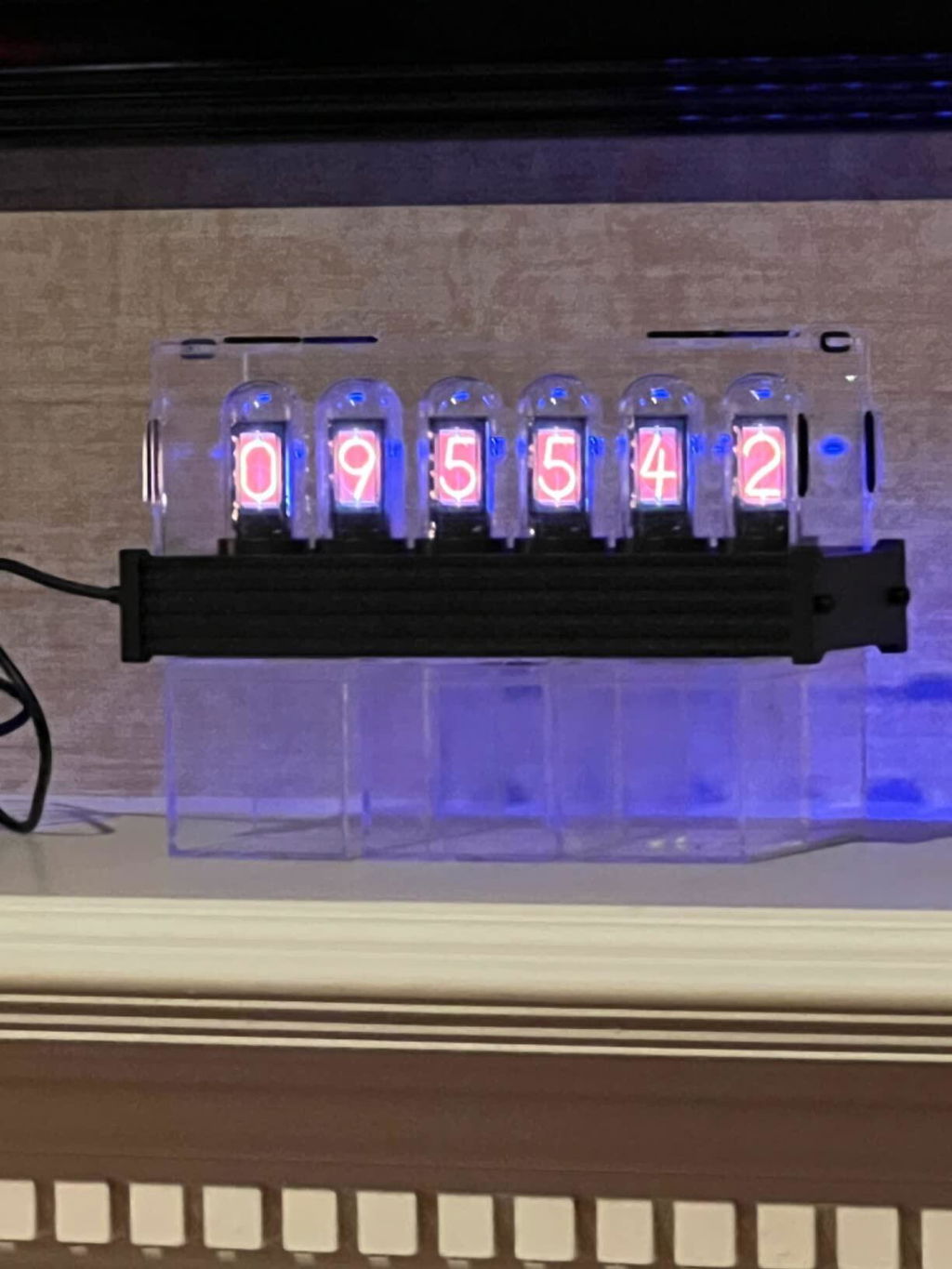
Love it
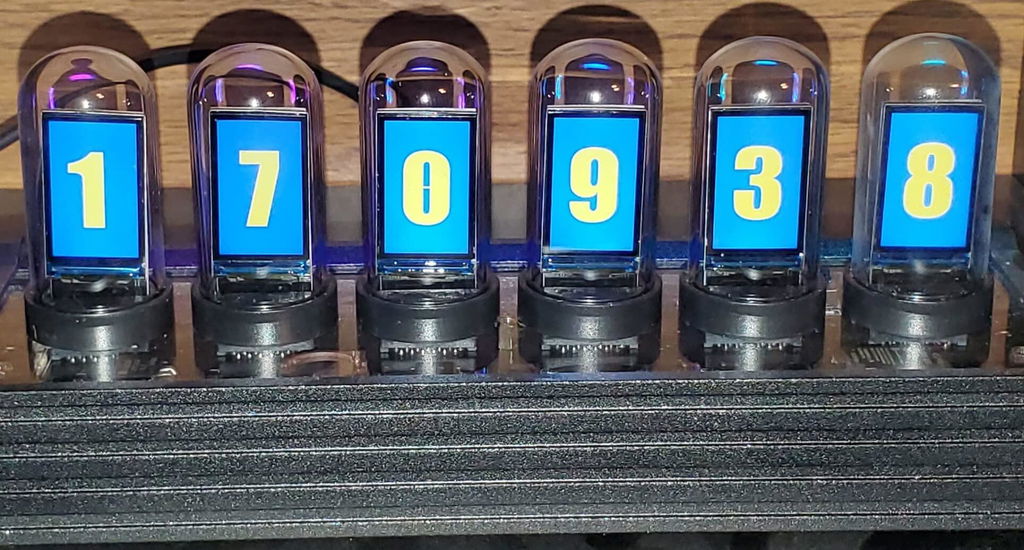
Nice

Like the name of this site, love the cool gadget. And actually feeling the clock is a great touch.

I love this product, and it is definitely worth the value. It was easy to assemble, and it looks nice. Having one in the room is cool and fashionable, and the effect is even better when the surrounding is dark or dimly lit. I am enjoying my clock, and I believe it is worth it for anyone who admires the Nixie tube aesthetic but doesn't want to spend $300 on a clock.

The screens allow you to display a wide variety of number styles and even pictures. The assembly is easy and takes about 15-20 minutes. You can configure all aspects of the clock from number style to ambient lights. Keeps good time too. Overall this was a good purchase and I've enjoyed it.

Love it looks like the real thing without the hassle or real tubes burning out

I really like this clock, especially that it can be changed to simulate almost any other type of clock. I have nixie clocks, numitron clocks, flip clocks, VFD clocks, this one fits right in with the collection.

Edit: Unit is really cool. Wanted real Nixie tube, This is the next best thing. Unit was replaced under warranty. Took a while but they came through.

Ojo necesita de un equipo Windows para configurarlo

This clock is beautiful and easy to use. The idea of having tiny backlit LCD screens, one for each digit, is delightfully clever. The glass tubes and rear-mounted RGB LEDs add authentic nixie ambience! If you get bored with the nixie look, you can change the font or even show little pictures on each of the screens. The only snafu is that you need to use a Windows 10 program to get extra fonts or to load little pictures. Moreover, the USB chip they use needs a non-standard driver. Both of these latter items require you to download from a sketchy Chinese website. I couldn't get any of this to work and gave up. But what you are able to do without the software is very satisfactory. This clock is worth the money and is extremely nice. It works fine and you can change among built-in fonts without any computer or software.

This one is not only can present the shape on the product picture, but also can be connected to the software to download a variety of clock templates, which is so versatile! I really like it!

This is a very engaging digital tube clock. Very eye-catching and has wonderful features. The weather interface for the most part works well, but if you use any of the downloaded number sets the clock faces are not as reliable as compared to the built-in one.
Fun and great little tech toy! I am giving some of these to some friends.
Very nice with lots of options once I figured out how to get setup into English. Don’t spend the $30 for the cover as it is very cheap plastic and will scratch easily.
I bought this for a Xmas present.
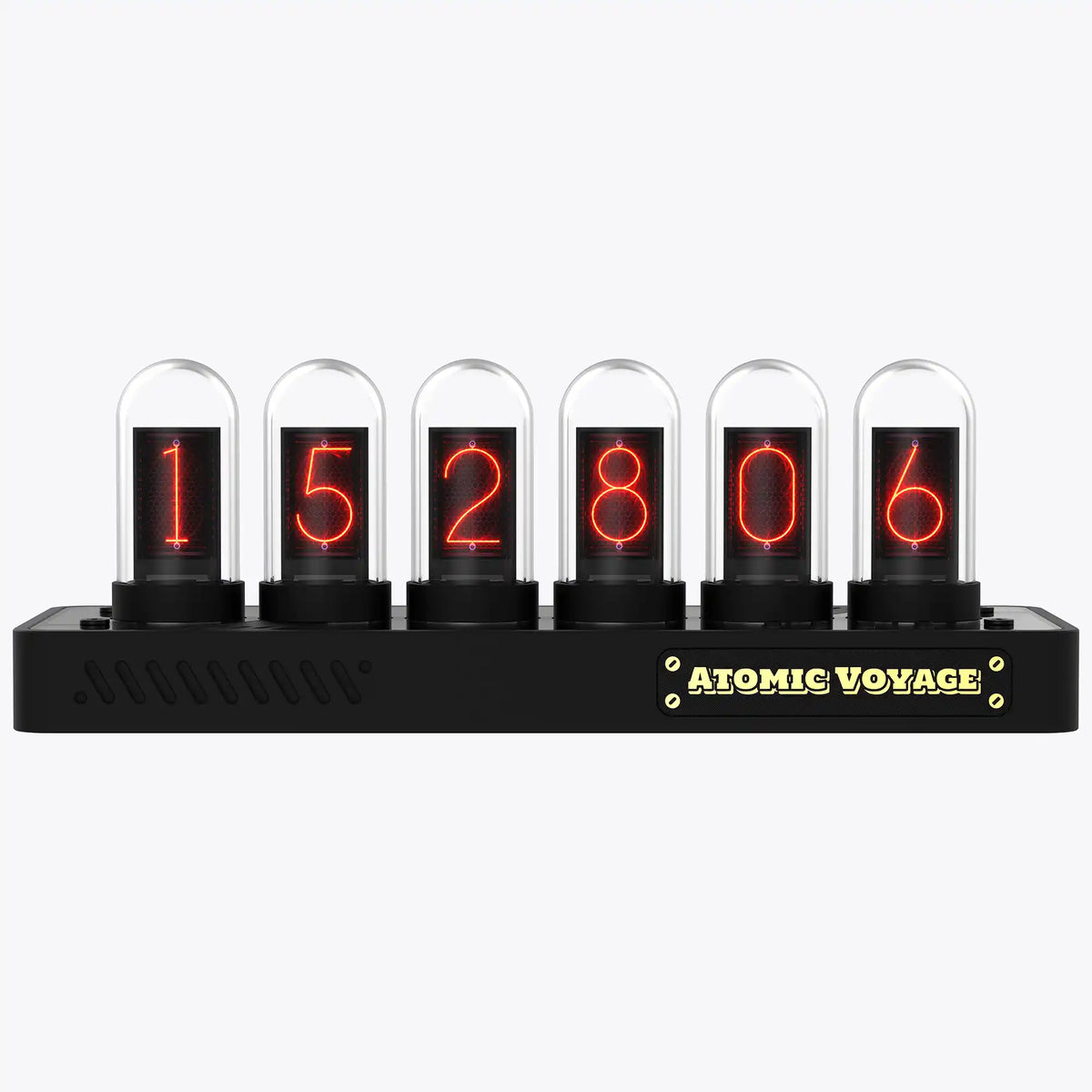
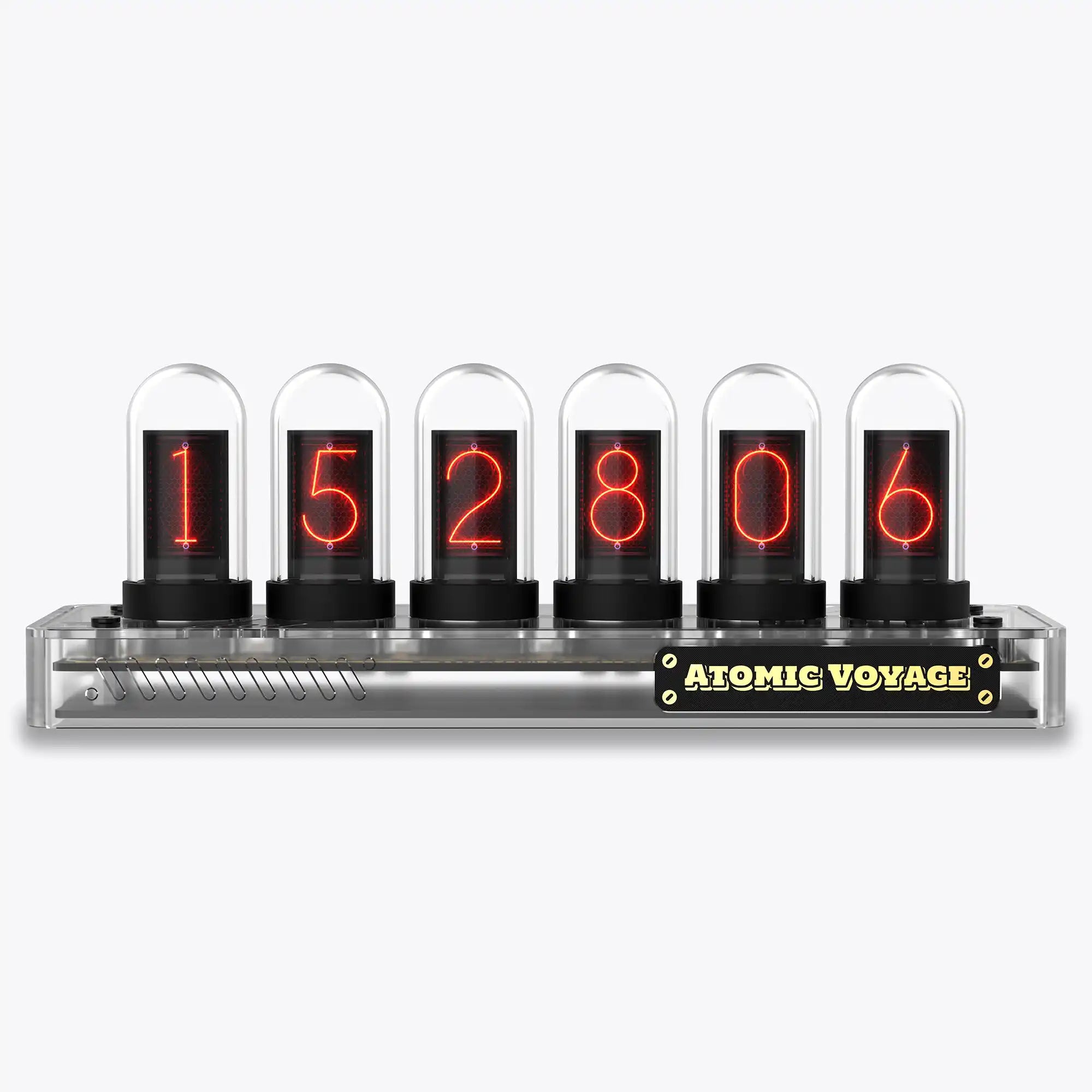
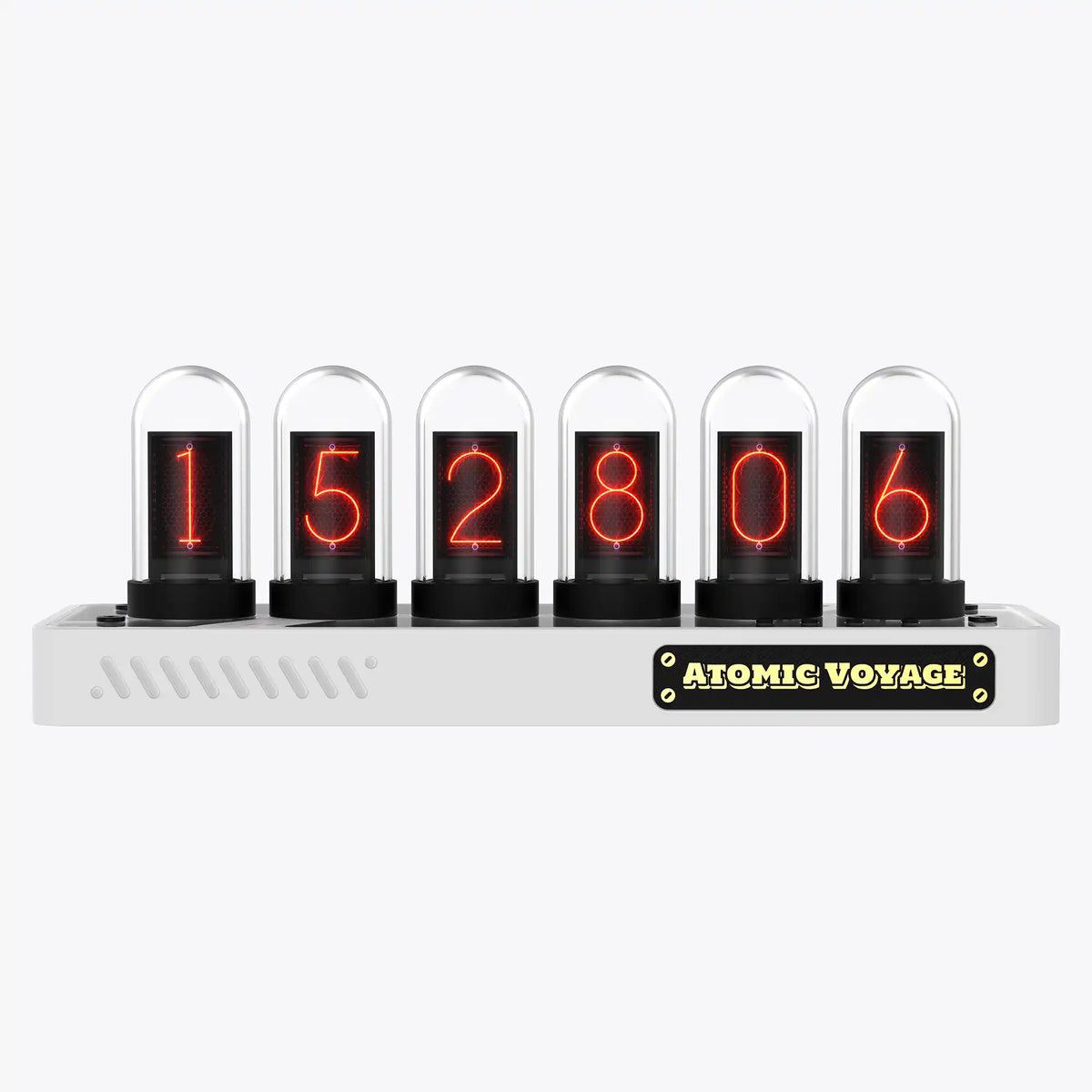
Find the one that fits.
PR2, PR3, PRO and IPS share the same core experience. Choose the material and finish that feel right for your space.
Questions, answered.
What’s the difference between IPS, PR2, PR3, and PRO models?
The only difference is the base material: IPS (aluminum alloy), PR2/PR3 (strengthened nylon), PRO (CNC-milled aluminum).
How do I exit the settings and return to the clock display?
Press Button D to exit settings and return to the clock display.
What kind of power supply does it need?
Any 5V / 1A USB adapter works. (Adapter not included.)
Does the clock need to stay connected to a computer?
No. A computer is only required for setup or uploading faces. Daily use just needs USB-C power.
How does the clock keep accurate time?
With built-in Wi-Fi and NTP sync, your clock stays always accurate.
Do I need to update firmware to use Web Control Center?
Yes. All units ship with factory firmware. Updating is optional — but required for Web Control Center features.
What if I don’t want to update?
No problem. The clock works normally out of the box. Updating only unlocks Web Control Center features.
Tech Specs
What’s in the Box
Clock Unit
USB-C Cable

User Manual

Hex Key (Allen Key)

Non-slip Pad


Setup Guide/ Download Driver
Atomic Voyage Clock Web Control Center Guide
How to Easily Set Up and Use Your Atomic Voyage WFD II
Read moreabout How to Easily Set Up and Use Your Atomic Voyage WFD II